 Racqt
Racqt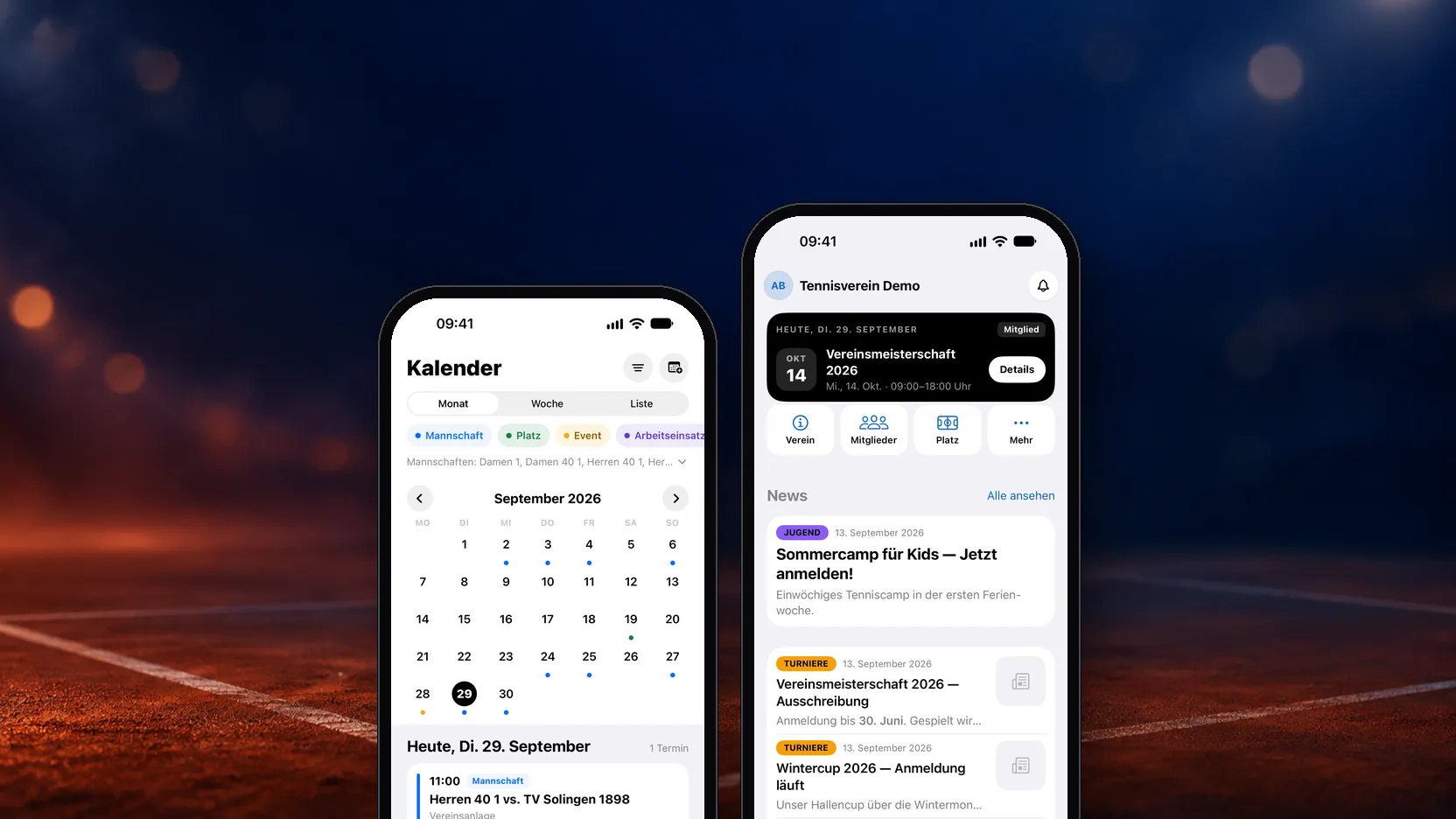
Most of you use Racqt mainly for one club — and that’s exactly what My Club mode (“Mein-Verein-Modus”) on iPhone and Android is for. It puts everything that belongs to your club front and centre: tidy, in your club’s colours and without detours. Here it is in detail. The app’s interface is in German; we name the German labels so you can find them.
How to switch
If you’re a member of a club, the app asks you once after signing in how you’d like to use it: “Mein Verein” (My club) or “Ganz Racqt” (All of Racqt). You don’t have to commit — you can change your choice at any time under Profil › Einstellungen › Verein (Profile › Settings › Club) with the “Mein-Verein-Ansicht” switch. The app remembers your decision, on all of your devices.
Everything in one place
In club mode, the bottom navigation is entirely about your club: court booking, calendar, the clubhouse, chats and events — all relating to the club you’re currently in.
The clubhouse: your starting point
In the middle sits the clubhouse (“Clubhaus”), the heart of the mode. At the very top, the “Heute” (Today) card tells you what’s coming up for you: today’s court booking or the next event — and whether a payment is still open. No searching, no clicking through.
Below are four shortcuts — club, members, court and more — and your club’s news, with a large lead image and compact rows underneath. Tap a news item and it opens as a full article with image, category, date and nicely formatted text. “Alle ansehen” (See all) takes you to the complete list. Your notifications are always within reach via the bell at the top right.
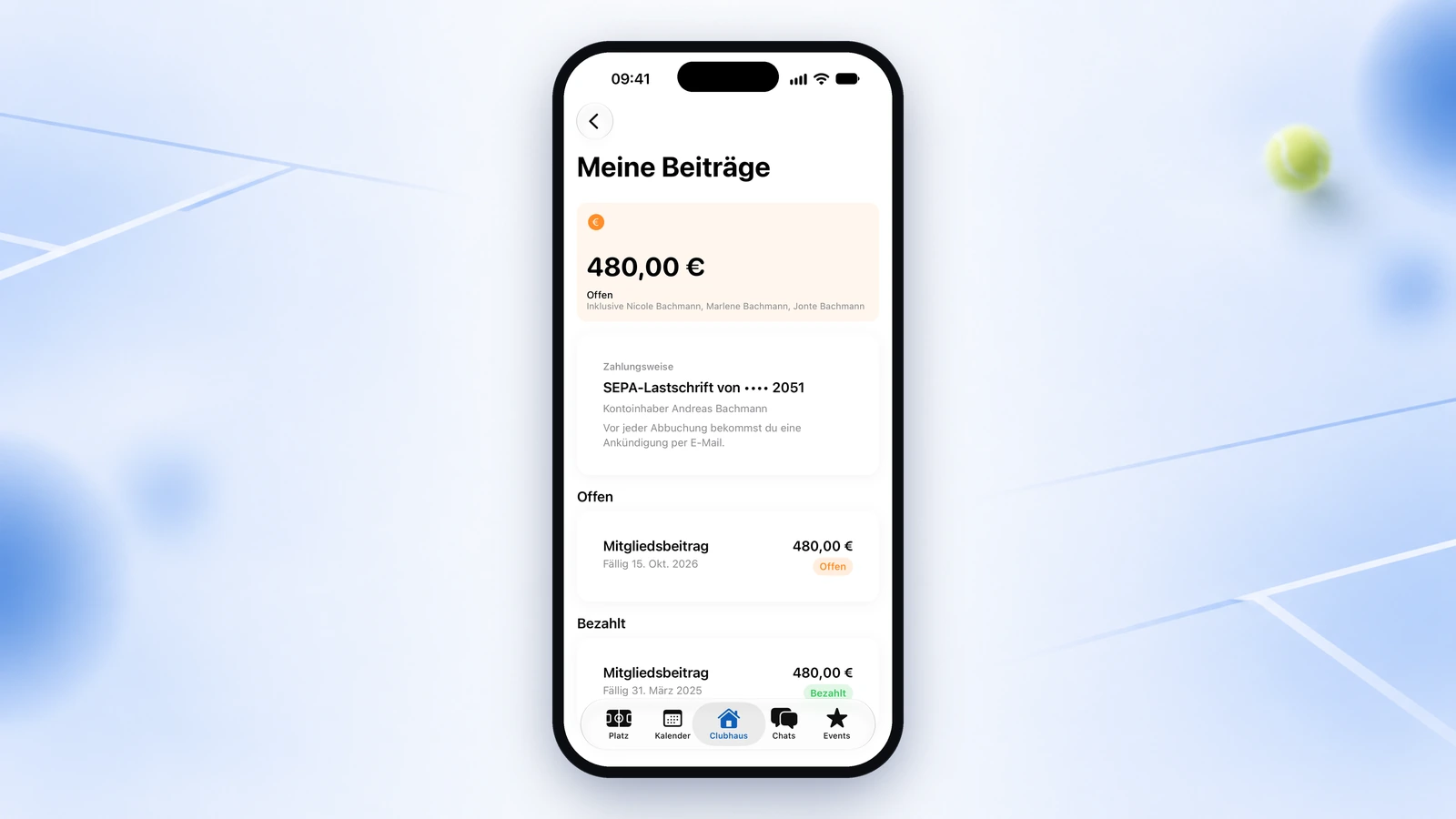
Behind “Mehr” (More) your profile card awaits, with your rating, teams and registrations at a glance. The areas below show live what’s coming up: open bookings, payments due, your volunteer hours.
In your club’s colours
In club mode the app takes on your club’s colour and logo — name and crest are always in view at the top. It feels like “your club’s app” rather than an app your club happens to appear in. Everything stays easy to read, whether your club colour is light or dark and whether you use the app in light or dark mode.
The calendar: three views, one legend
The club calendar shows all of club life and gives you the choice: month with coloured dots per day, week with your day’s schedule, list with all dates from today.
The colour legend above the calendar explains the dots — and filters at the same time: team matches blue, court bookings green, events orange, work sessions violet. Tap a colour and the category disappears from the view; tap again and it’s back. Below the month grid you always see the daily schedule for the selected day, with time, place and notes such as “Deine Buchung” (Your booking) or “Aufgestellt” (In the line-up).
Lots of teams at your club? With the team filters you hide and show individual teams’ fixtures with one tap.
And if you want your club dates where the rest of your life already is: a tap on “Im iPhone-Kalender anzeigen” (Show in iPhone calendar) or “Im Google Kalender anzeigen” (Show in Google Calendar) sets up a calendar subscription. Once set up, new dates are added by themselves.
Your chats, sorted by club
Chats follow your club too: the conversations of your active club are right at the top so you don’t miss anything important. Your other personal chats are of course kept.
Several clubs? One tap
If you’re a member of several clubs, tap the club switcher at the top. It shows every club with its logo or initials in the club colour and your role, clearly marks the active club and uses red badges to show where unread messages are waiting. One tap — and the app changes colour and shows the content of the club you picked.
Back to the full Racqt world
Want to see everything again? Via “Zu RACQT wechseln” (Switch to RACQT) in the club switcher or the switch in the settings, you’re back in the full view immediately. Nothing is lost — you only change perspective.
You’ll find the step-by-step guide with pictures in the help centre under My Club mode.
Enjoy having your club in your pocket! 🎾