 Racqt
RacqtWeb
Finding answers in the help centre
Search, area filters and page navigation — how to quickly find the place in the help centre that answers your question.
On this page
The help centre explains every Racqt feature step by step — for the web portal,
the club dashboard and the apps for iPhone and Android. You can reach it at any
time at racqt.app/en/handbuch or via “Help centre” in the navigation. Racqt
itself is in German; the help centre names the German labels so you can find
them.
Searching for a feature
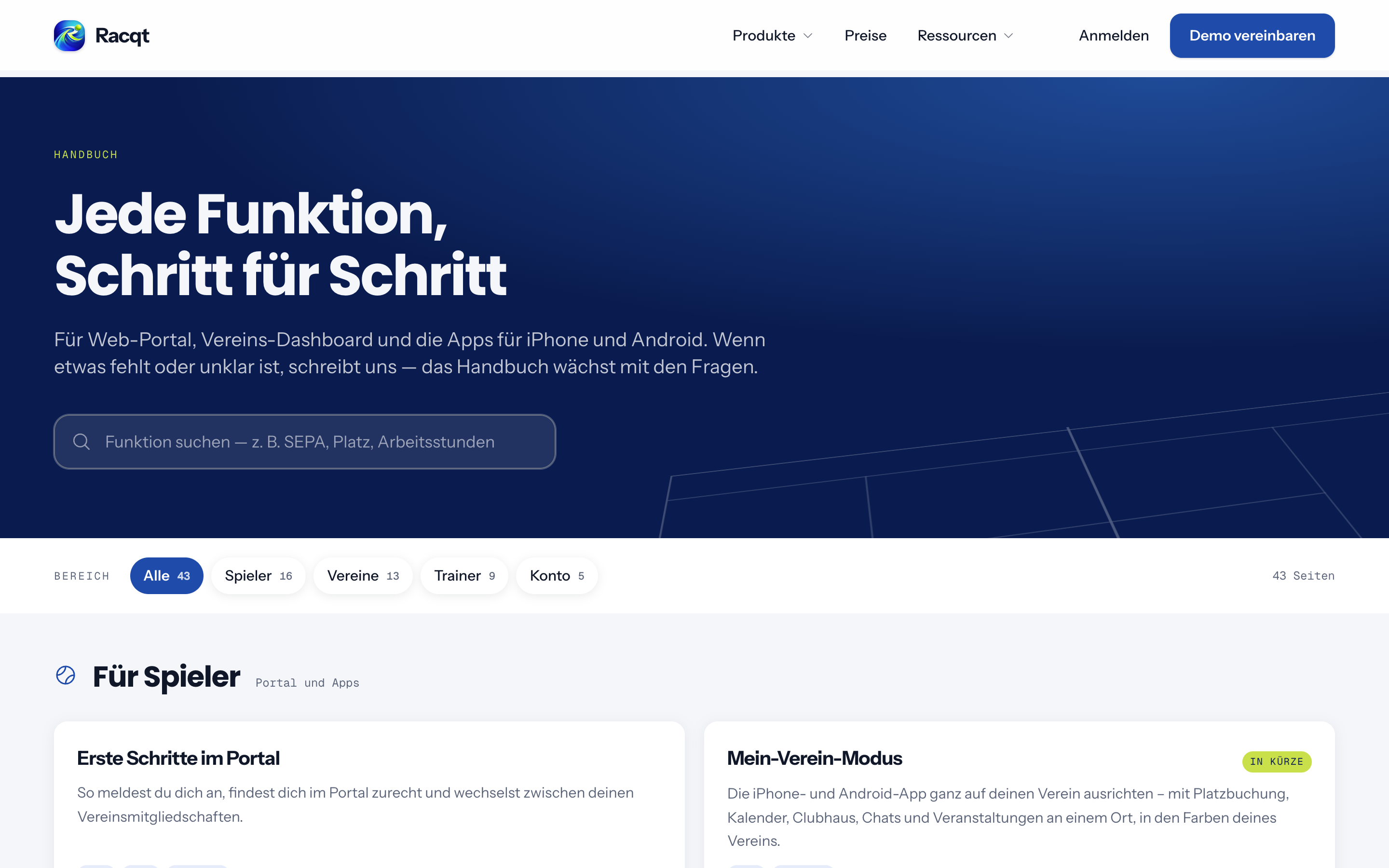
In the search field at the top, type what you’re looking for — for example “SEPA”, “court” or “volunteer hours”. The list adapts immediately and only shows pages whose title or short description contains your search term. Below the filters you can see how many pages are left. Without a search term, “Frequently searched” shows the pages that are needed most.
Filtering by area
Below the search you’ll find the areas: For clubs, For players and Account. One click shows only the pages in that area, and the number next to it tells you in advance how many there are. Search and area can be combined — “All” takes you back to the full list. Pages added with the current version are marked New.
Finding your way around a page
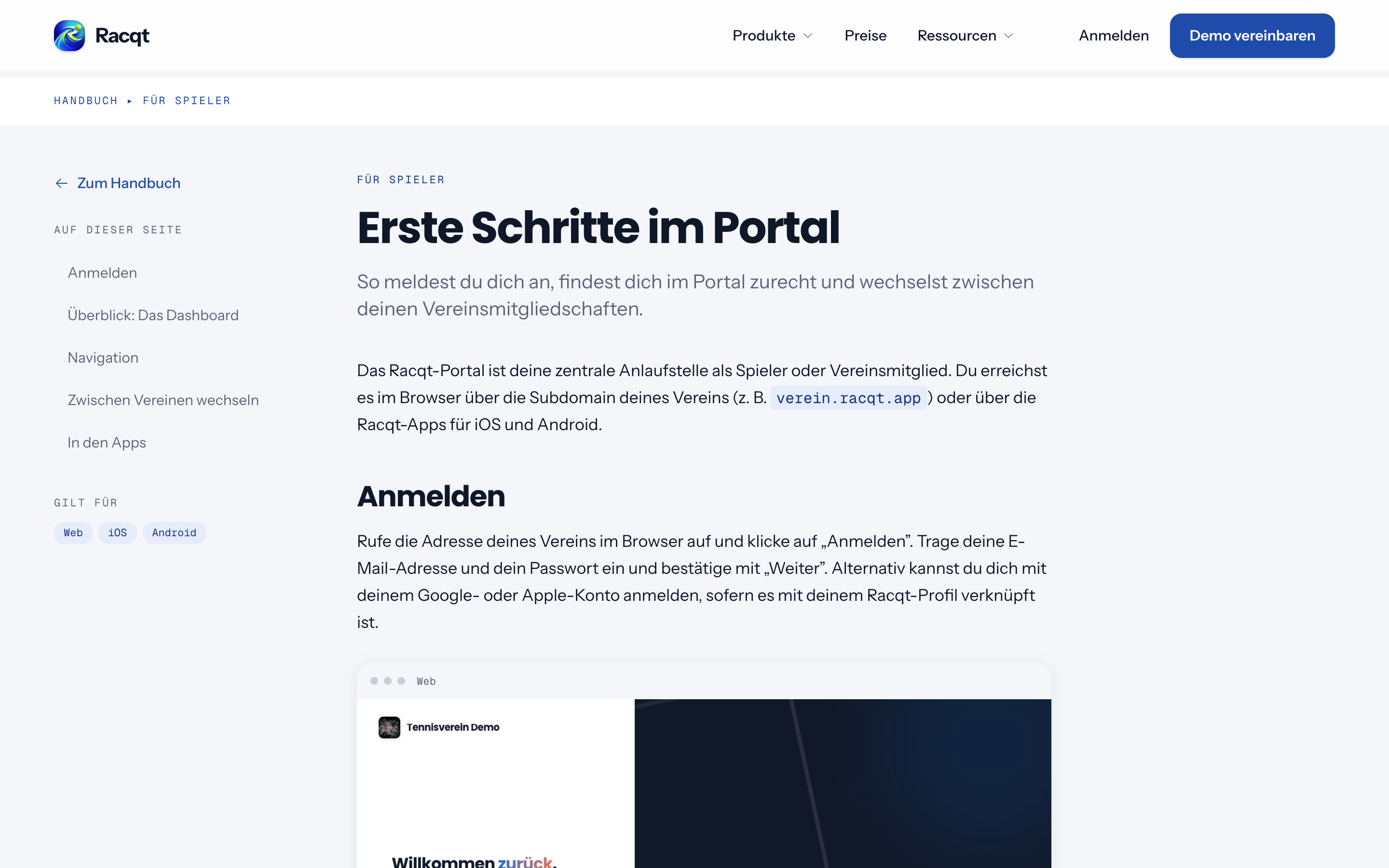
Every article page shows at the top where you are — such as “Help centre / For clubs / Finances” — and below that on which platforms the feature is available: web, iOS or Android.
- On the left are the search and all topics in the area. On a phone you open them via the bar at the top.
- On this page lists all sections of the article. One click jumps straight there. On a large screen the list is on the right; otherwise it expands above the text.
- In the changelog leads to the versions in which the feature was added or changed.
At the end of every page, Previous and Next take you to the previous and next article in the same area — handy if you want to read up on a topic.
Something missing or unclear?
If an explanation doesn’t help, write to us via the contact page (in German, but English messages are welcome). The help centre grows with your questions: what’s asked often gets its own page.
If a page describes a feature that isn’t live yet, a note with the version appears at the top. In the changelog you can see what was added in which version.
In the changelog:1.4.0