 Racqt
RacqtComing soon WebiOSAndroid
Recording matches
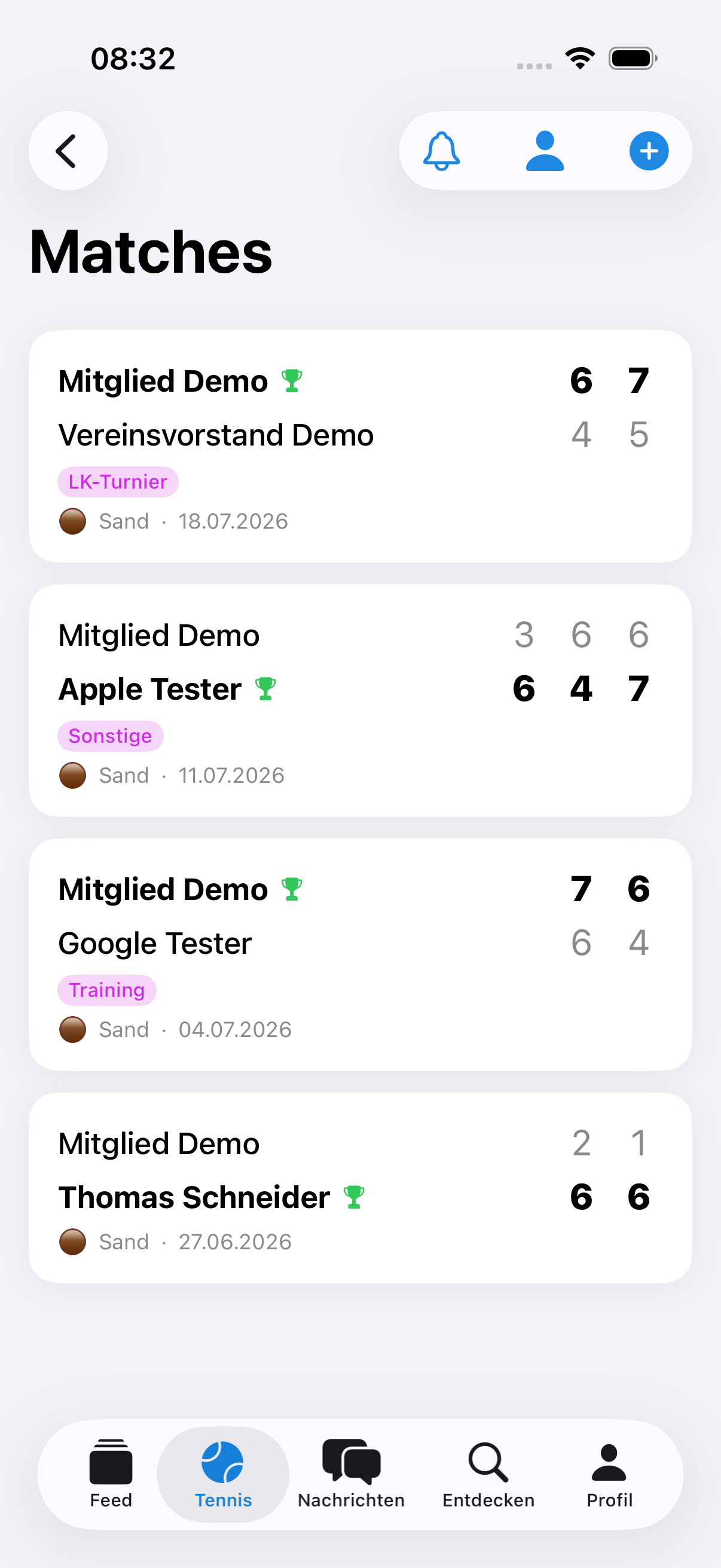
Create matches, enter results set by set and keep a complete overview of your playing history.
Not released yet. This feature belongs to version 1.7.0 and will be available shortly. To the changelog
On this page
With Racqt you keep a record of all your tennis matches — from a friendly singles to a team match. The match overview gives you a complete playing history at a glance.
Your matches at a glance
Open the Matches area via the navigation (section “Community → Matches”) or via the play menu. Each match shows the opponent, the date and — if already entered — the result. Click an entry to open the full detail view.
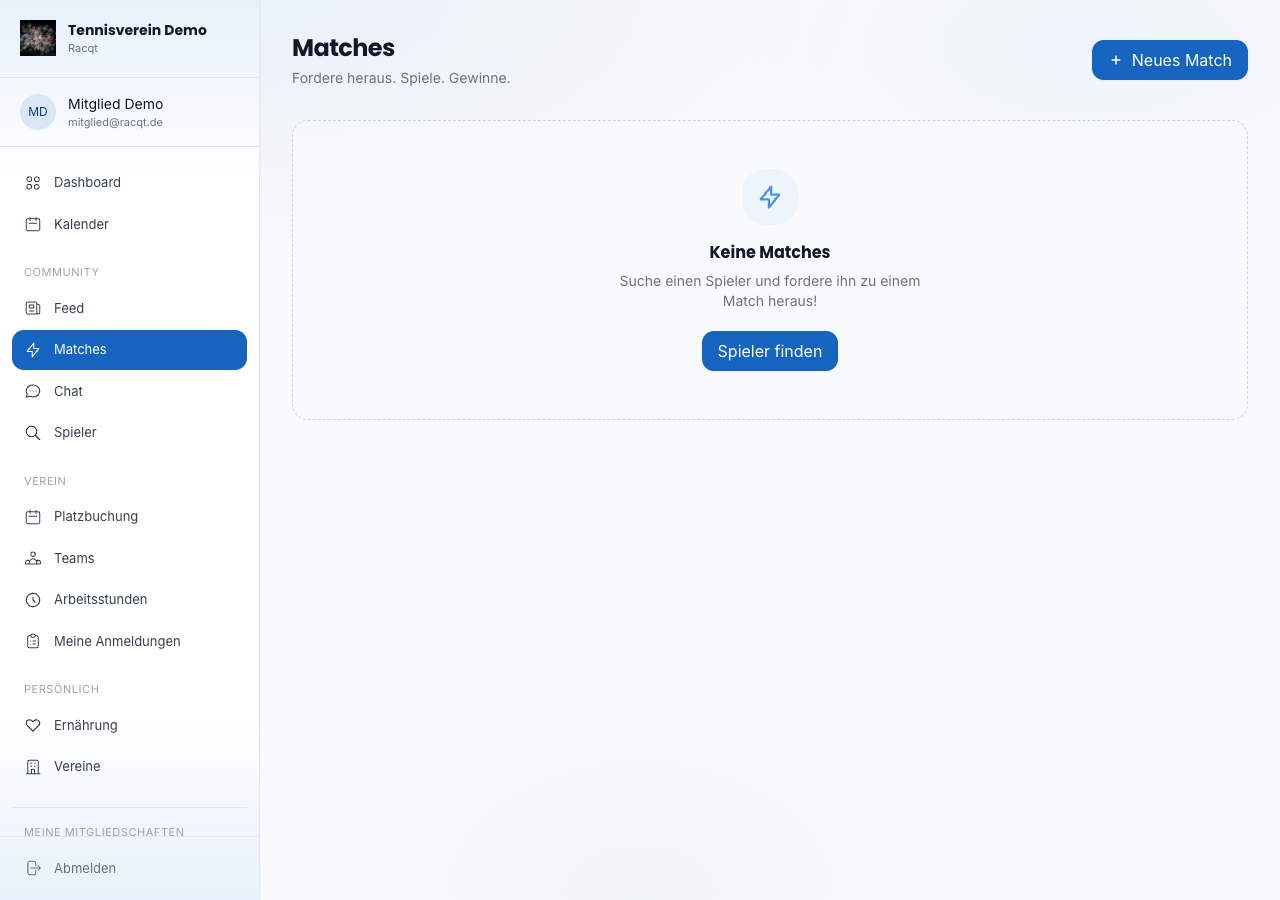
Creating a new match
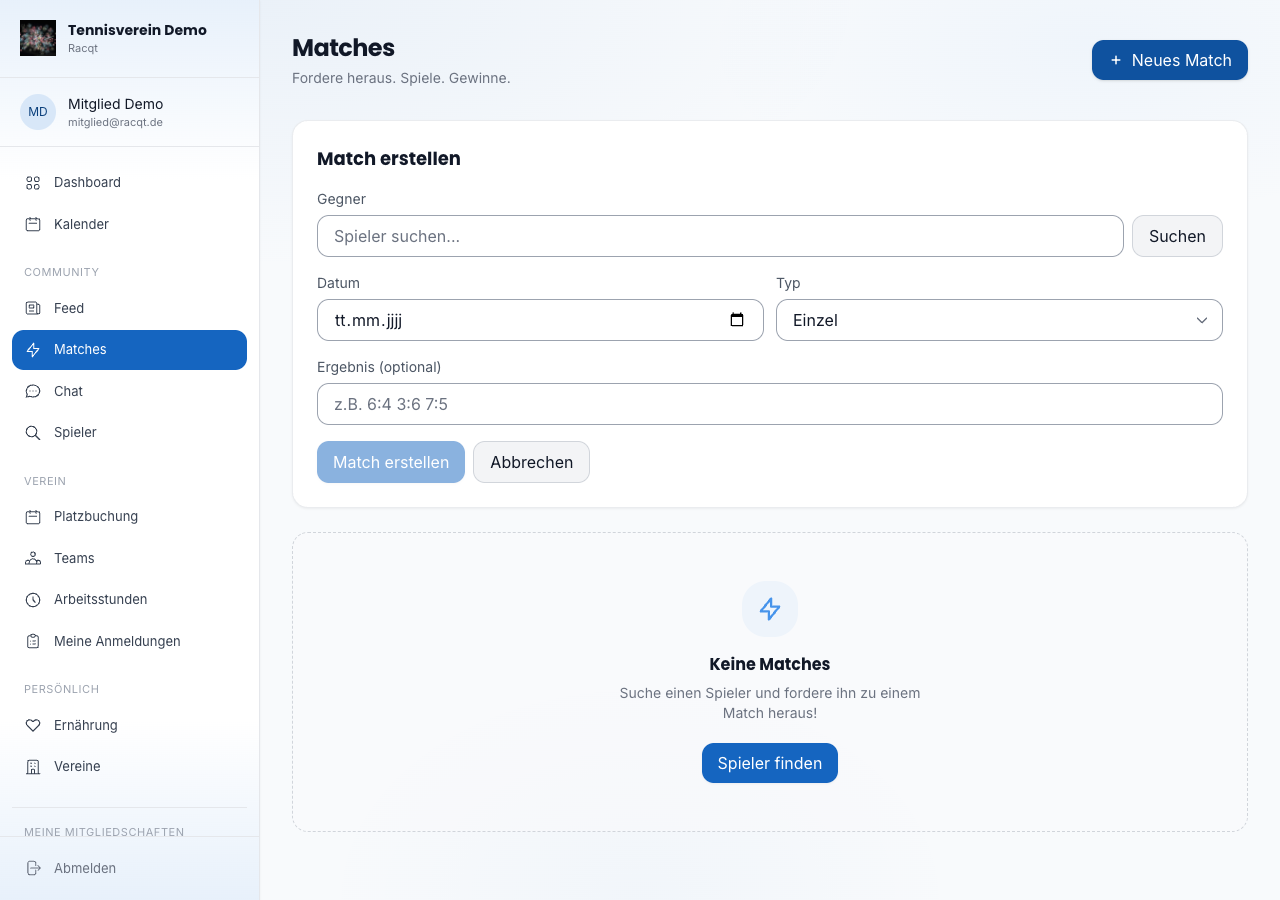
Click Neues Match (New match) at the top right. A form opens:
- Gegner (opponent) — search for the opponent’s name and choose them from the suggestions. You can enter players without a Racqt account manually as a name (unregistered opponent).
- Datum (date) — choose the date of play.
- Typ (type) — singles, doubles or mixed.
- Ergebnis (result) — optional: enter the result in the format
6:4 3:6 7:5to store it right away.
Confirm with Match erstellen (Create match). The match appears in the list immediately.
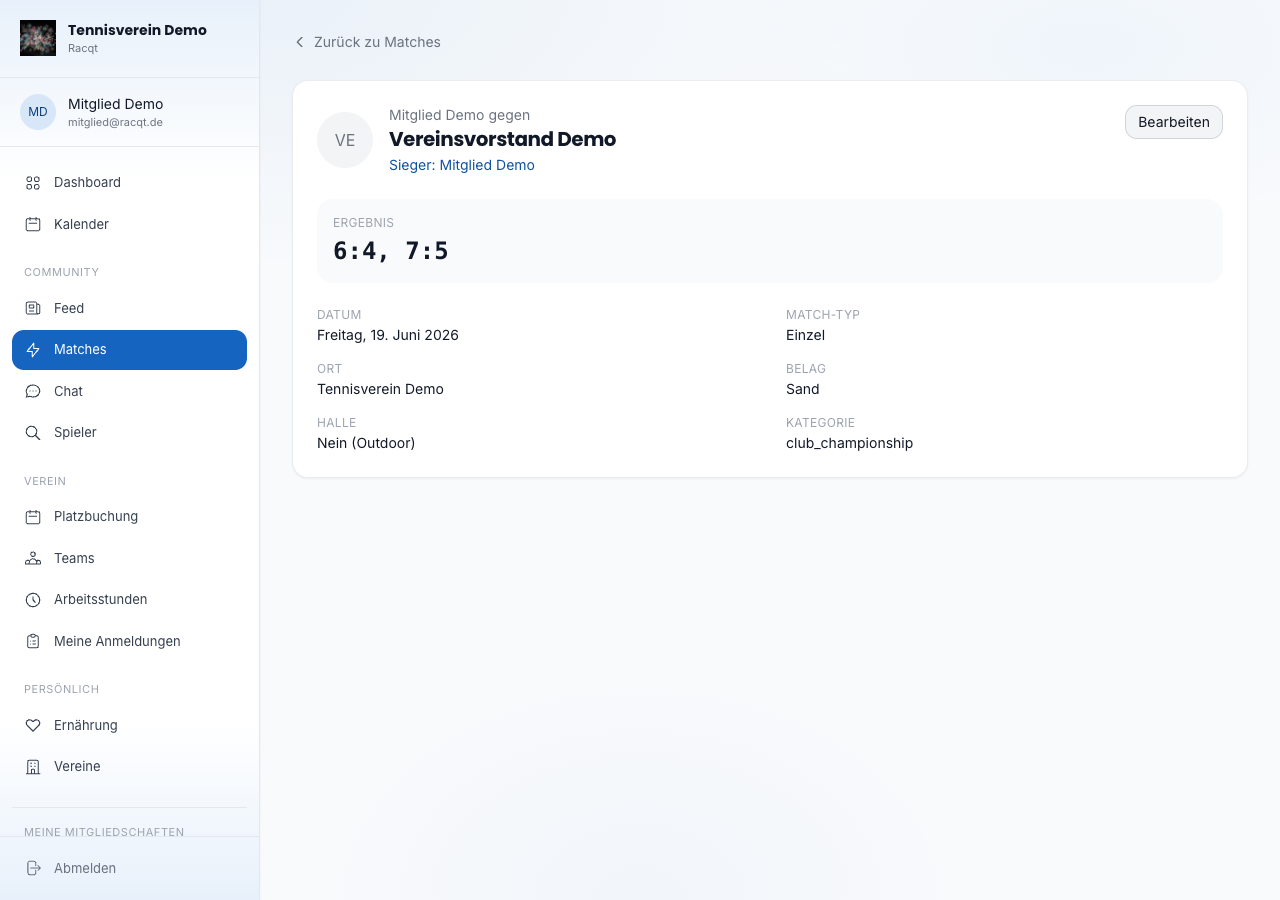
Viewing match details
The detail view shows all the details at a glance: opponent, result, date, match type, place, surface and whether it was played indoors. For doubles and mixed matches, the partner and second opponent are shown as well — a mixed is a doubles match and appears that way in the feed and your match list; for team matches, the league and team result appear.
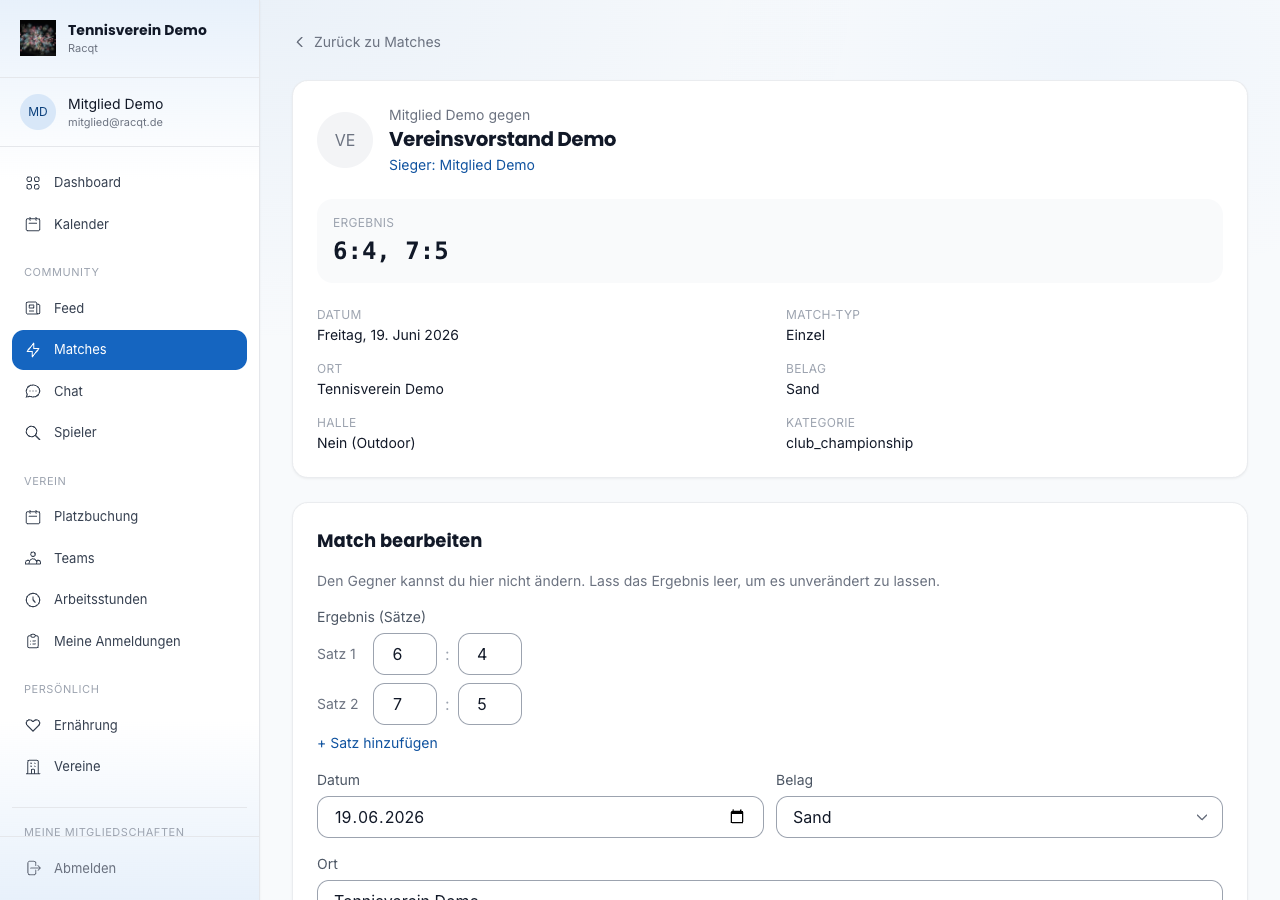
Entering or correcting the result afterwards
If you didn’t enter the result when creating the match or want to correct it, click Bearbeiten (Edit) in the detail view (only visible to whoever created it). Enter the games set by set — set 1, set 2 and so on. You can add up to five sets or remove individual sets again. The other fields let you update the date, place, surface and the match’s category. Racqt then recalculates your record against this opponent automatically.
In the apps
Recording and editing matches is fully available in the iOS and Android apps. Via a player’s profile (see Finding players) you can create a match directly from the opponent’s profile.
In both apps, input jumps to the next set field as soon as a set is entered. If the match is decided after two sets, the keyboard closes by itself. In the iPhone app you’ll also find “Weiter” (Next) and “Fertig” (Done) above the number pad. Results that don’t exist in tennis are explained by the app right below the fields, and after saving you briefly see “Match gespeichert” (Match saved).
If you entered a match by mistake or twice, delete it in the match detail view via the menu at the top right with Match löschen (Delete match). The app asks briefly first. Only whoever entered the match can delete it; Racqt then recalculates your record against this opponent.
If your opponent plays on Racqt themselves, they get a notification that you’ve entered a match with them. You don’t get a notification for your own result.
Related articles: Finding players & match requests · First steps in the portal
In the changelog:1.7.0