 Racqt
RacqtWebiOSAndroid
Notifications
View system and push notifications, mark them as read and jump straight to the relevant area via action links.
On this page
Racqt tells you about new booking confirmations, event changes, team messages and other events. You’ll find all messages in the notification centre.
Reading notifications
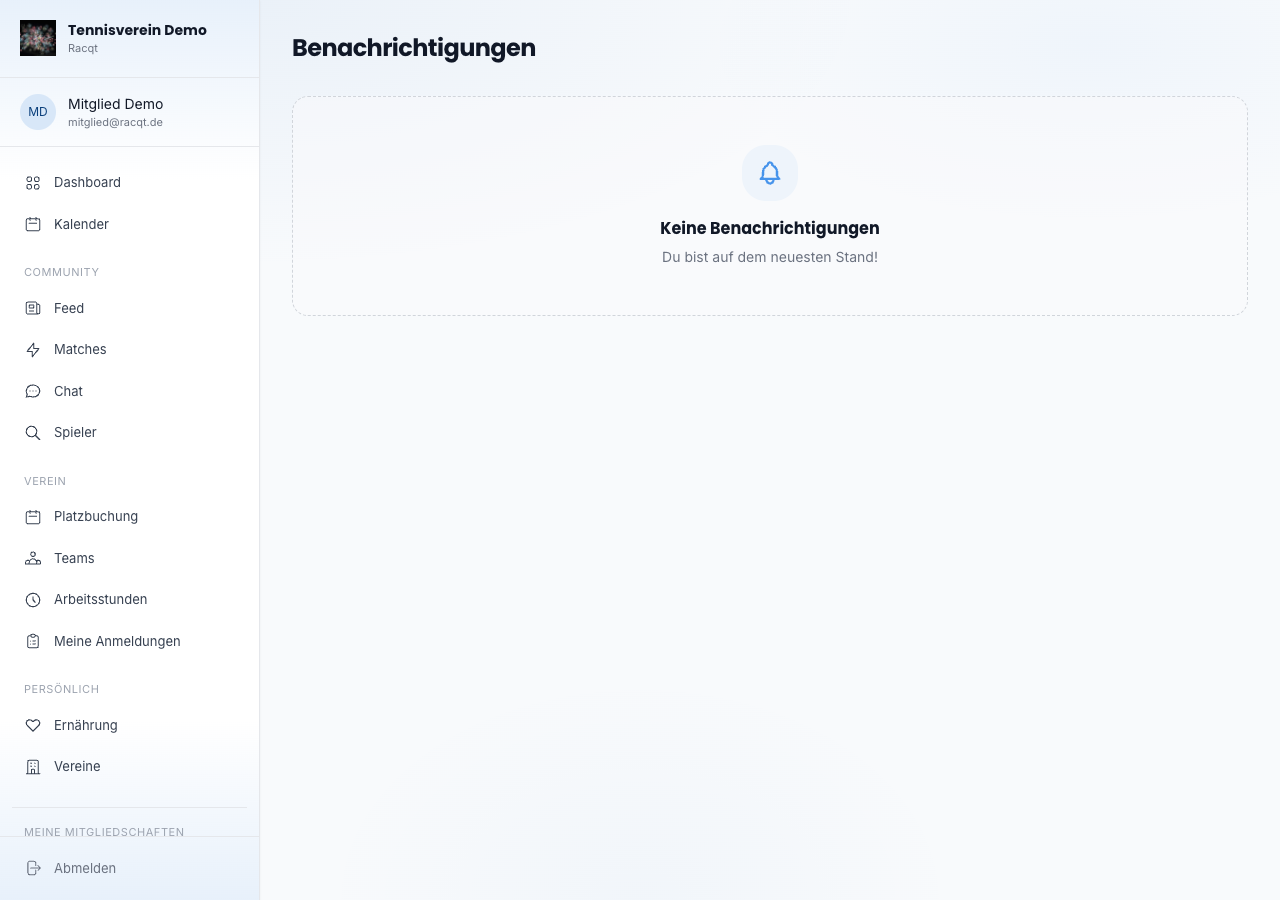
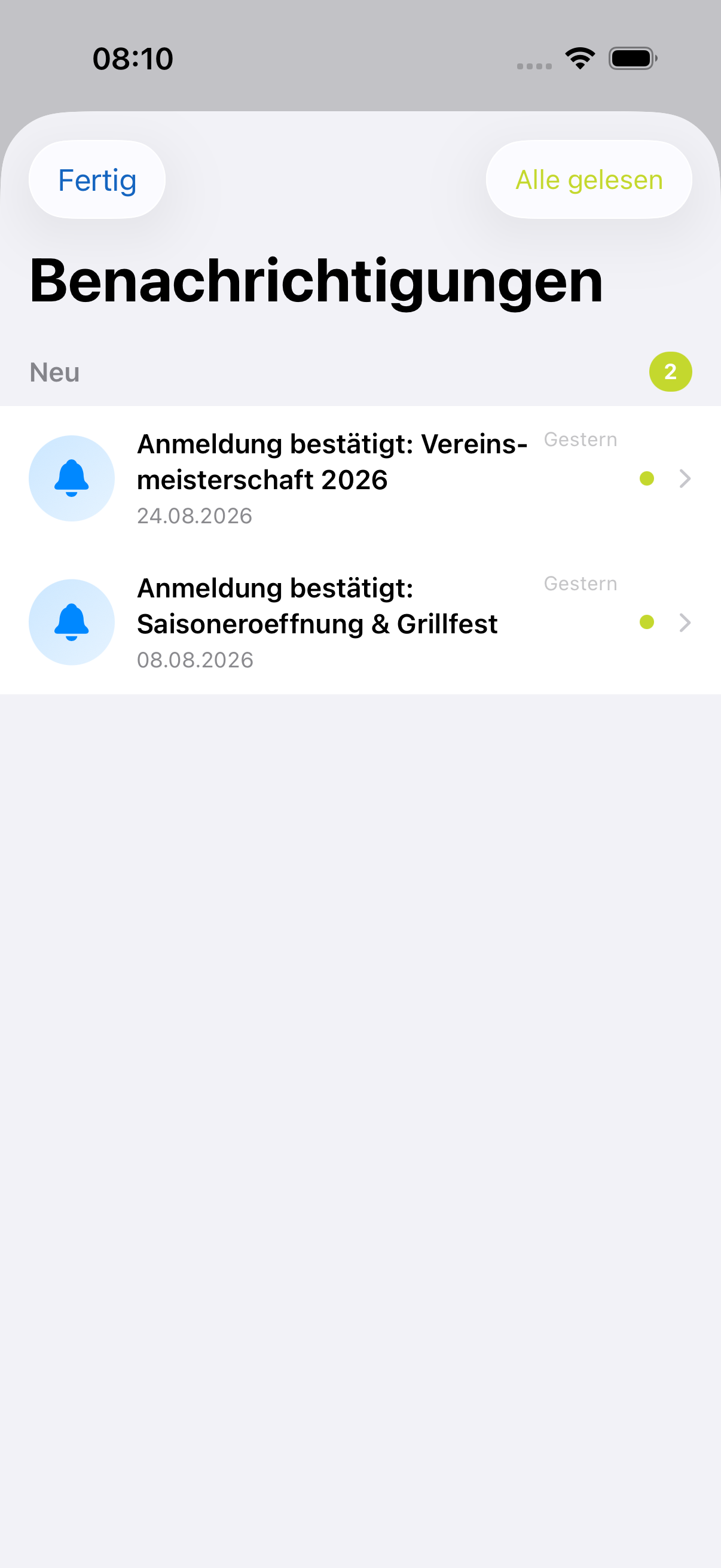
Open “Benachrichtigungen” (Notifications) in the portal menu. Each message shows an icon, a title, a short text and the time (for example “5 Min.” or “2d”). Unread entries are highlighted in colour and marked with a blue dot.
Marking as read
Click a single notification to mark it as read. If the message contains an action link — such as a booking or a team match — you’re taken straight there.
With the “Alle gelesen” (All read) button at the top right, you mark all open messages at once.
Turning on push notifications
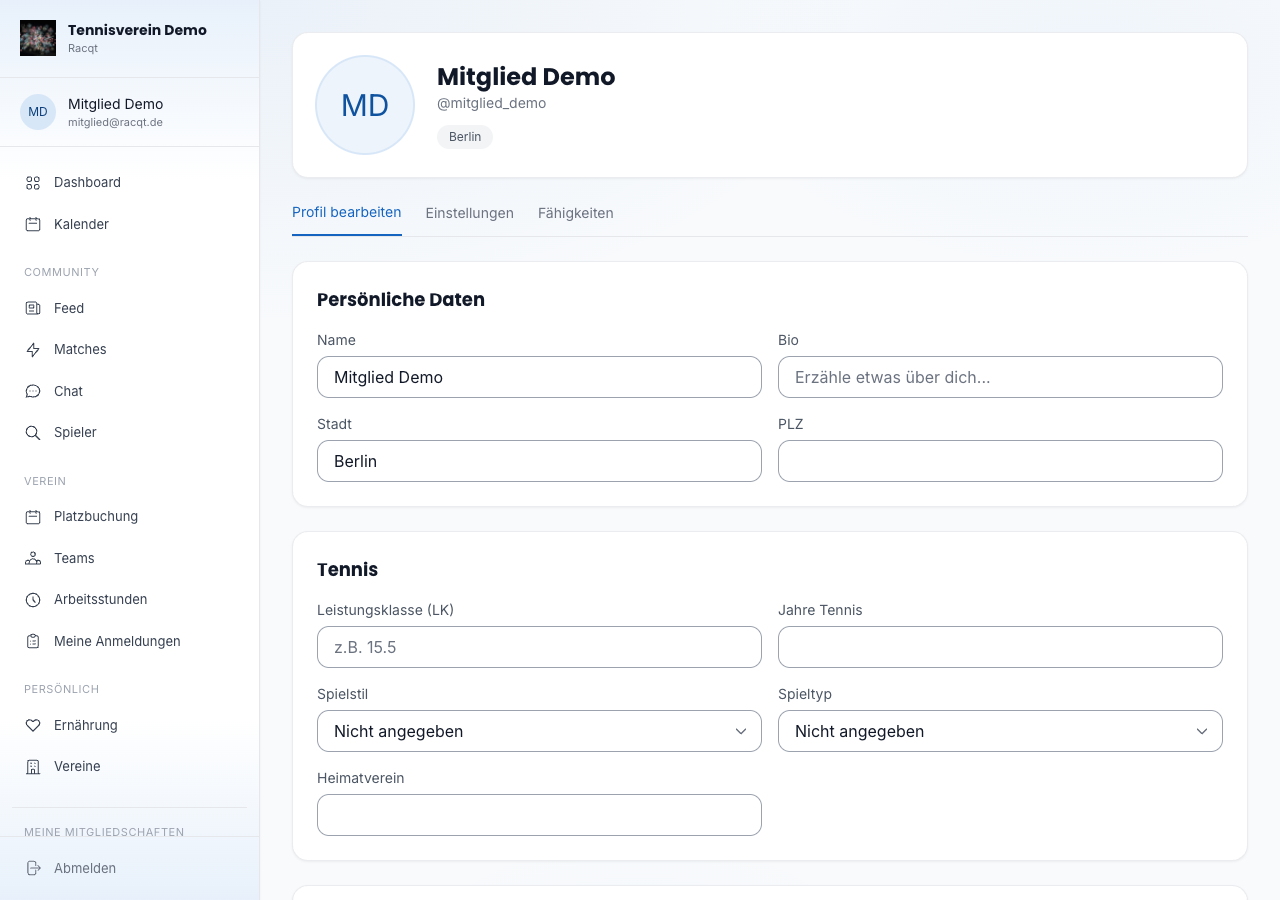
So that you stay up to date outside the portal too, you can turn on push notifications. To do so, open Profile & settings and tick “Push-Benachrichtigungen” (Push notifications) in the “Einstellungen” (Settings) tab. Email notifications can be switched on or off there as well.
In the apps
The notification list is available in the iOS and Android apps. Push notifications are delivered by the operating system as soon as you’ve allowed the option in the app settings.
On first launch after signing in, the app asks once whether it may send you notifications. Tap “Zulassen” (Allow) — only then will your device show new messages and booking confirmations. If you declined by mistake, you can catch up at any time: in your device settings under “Apps → Racqt → Notifications” (Android) or “Settings → Racqt → Notifications” (iPhone).
Related articles: Profile & playing strength
In the changelog:1.4.0