 Racqt
RacqtComing soon WebiOSAndroid
Booking a court
Reserve a tennis court, manage your own bookings and set up recurring series.
Not released yet. This feature belongs to version 1.5.1, 1.7.0 and will be available shortly. To the changelog
On this page
In the portal you can reserve tennis courts directly, without having to call the club. Choose date, time and court — everything happens online.
Choosing a court
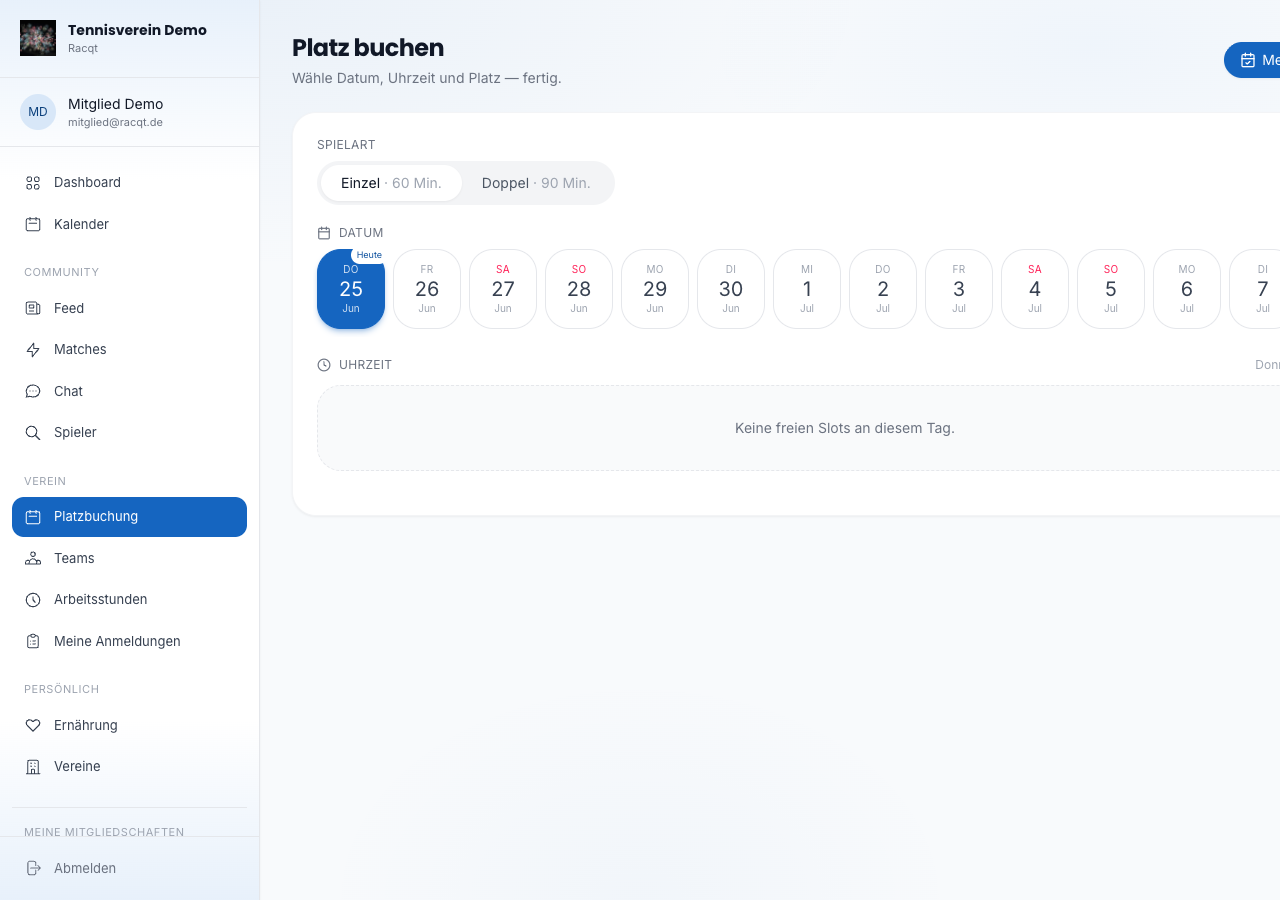
Open “Platz buchen” (Book a court) in the menu. The weekly calendar shows all courts with free and taken time slots. Click a free slot to select it.
Completing the booking
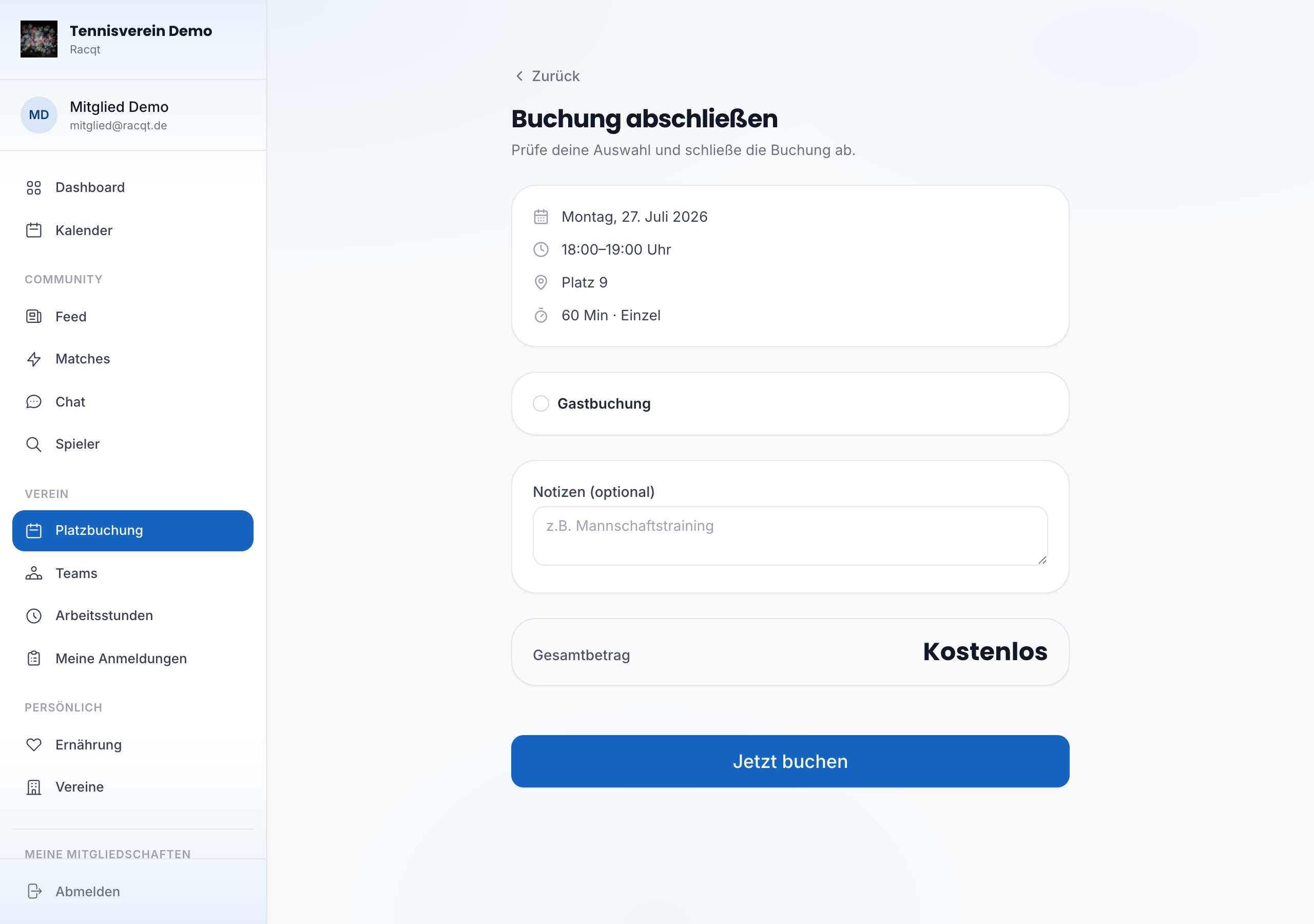
After choosing a slot, the booking page opens. There you see a summary with date, time, court name and duration. The total is calculated immediately.
If the club allows guest bookings, you can turn on the “Gastbuchung” (Guest booking) option and enter the guest’s name and email.
Optionally you can add a note, for example “Mannschaftstraining” (team training).
For paid bookings you choose a payment method (PayPal, SEPA or invoice) and finish with “Bezahlen” (Pay). Free bookings are confirmed immediately with “Jetzt buchen” (Book now).
As soon as your booking is confirmed – free bookings immediately, otherwise after payment by invoice, direct debit or PayPal – you get the notification “Buchung bestätigt” (Booking confirmed).
If you cancel the payment, Racqt discards the reservation and the court is free again immediately. This also applies if you cancel on the PayPal page or simply close the PayPal window. If a booking is still listed as “Ausstehend” (Pending) under “Meine Buchungen” (My bookings), it hasn’t been paid — if you cancel it, no costs arise.
My bookings
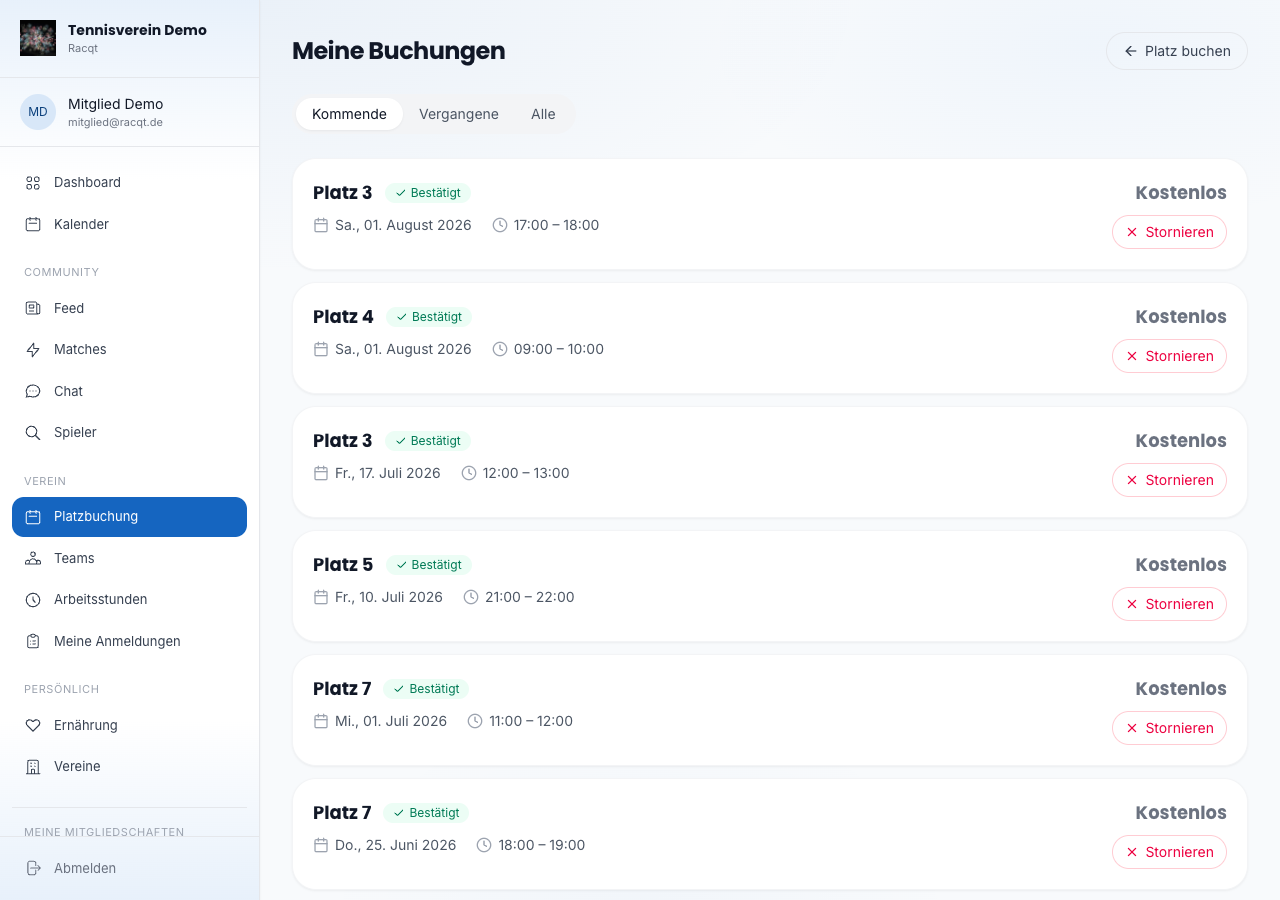
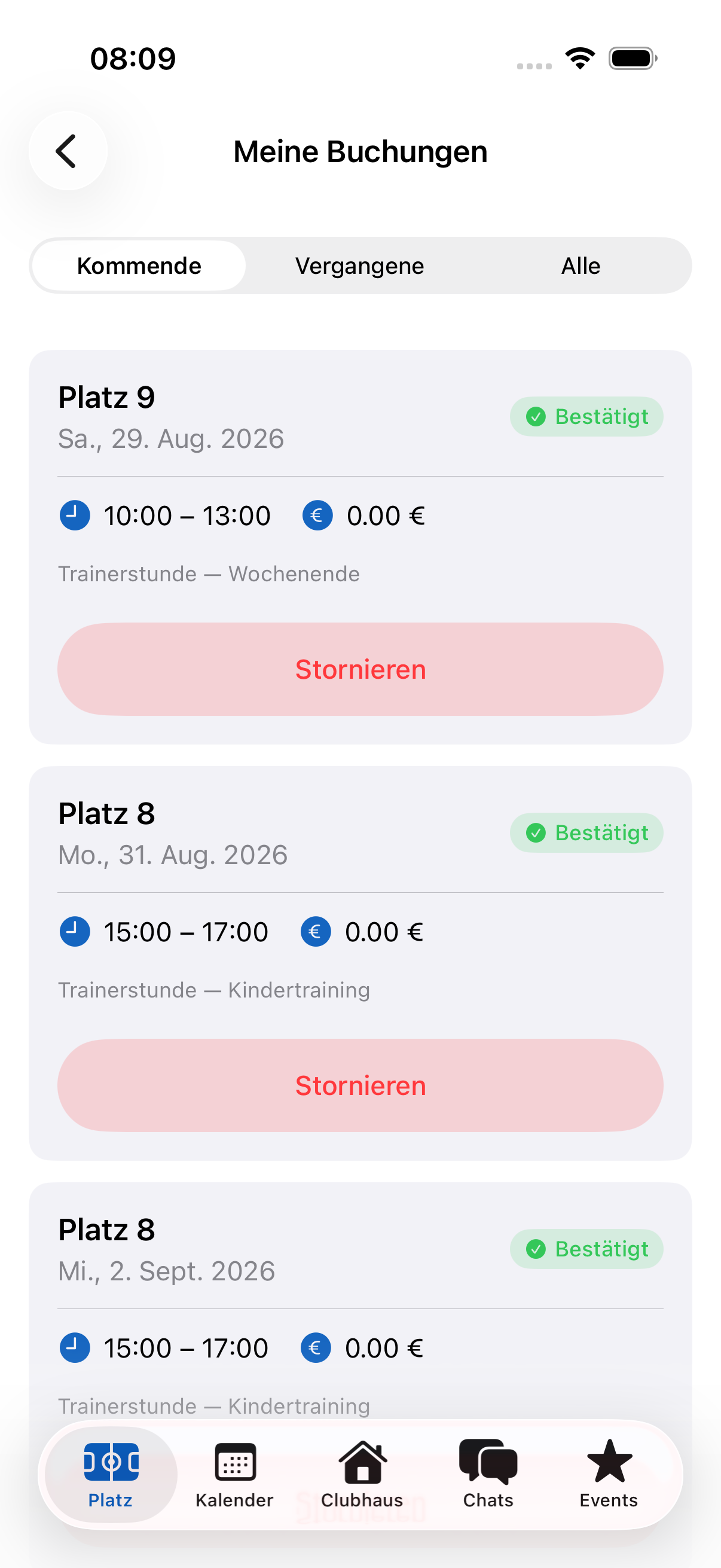
You’ll find all your reservations under “Meine Buchungen” (My bookings). Switch between “Kommende” (Upcoming), “Vergangene” (Past) and “Alle” (All). Bookings you want to cancel can be cancelled right there.
Recurring bookings
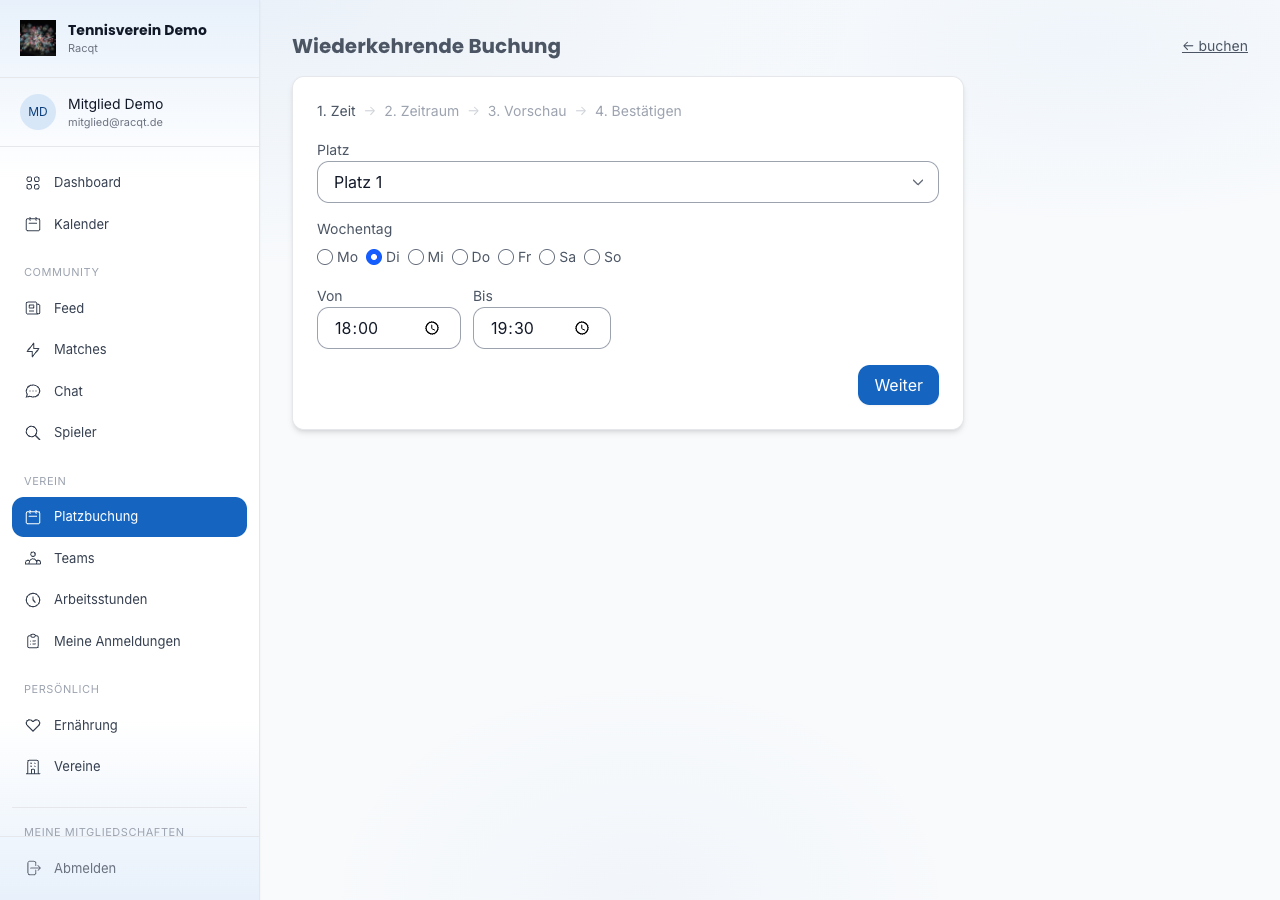
For regular training times you can set up a booking series. Enter the weekday, time and validity period. The series automatically creates individual bookings for every date — each of them appears in the court calendar, and the court is reserved for you at that time. A series can be cancelled at any time from a date of your choice; all upcoming dates then disappear from the calendar immediately and the courts are available to everyone again.
Reminders before your booking
Before every court booking you get two reminders by email: one the day before and one about two hours before play starts. That way no reservation slips through any more.
If you can’t make it after all, one click on “Reservierung freigeben” (Release reservation) in the reminder from the day before is enough. You don’t have to sign in for this. We ask once whether you really want to release it — after that the court can be booked by other members again immediately.
If you’ve already paid for the booking, you get the amount refunded automatically — this also applies if your club has to cancel a date because of the weather. You don’t have to do anything else.
In the apps
Booking courts, viewing your bookings and managing series is also possible in the iOS and Android apps. The note field stays visible while you type. If your court costs nothing, the booking is done immediately — we only ask for the payment method when there’s actually something to pay, for floodlights or guest players, for example.
You see what your court costs already in the booking form and again at payment; if it costs nothing, it says “Kostenlos” (Free). In the iPhone app, tapping a booking under “Meine Buchungen” opens all the details – payment, guest, note and, if applicable, the reason for cancellation. You can also cancel the booking directly from there.
Related articles: First steps in the portal · Events