 Racqt
RacqtWebiOSAndroid
Teams
View your own teams, check fixtures and table, and report your availability for matches.
On this page
If you’re a member of one or more teams, you see all the related information directly in the portal: fixtures, the current table and the team’s other players. The team page shows the same content as the public club page: the team with a photo at the top, plus table, fixtures and players. In the portal everything is on one page to scroll through; in the iPhone and Android apps you’ll find fixtures, table and players neatly in their own tabs below the team header.
My teams
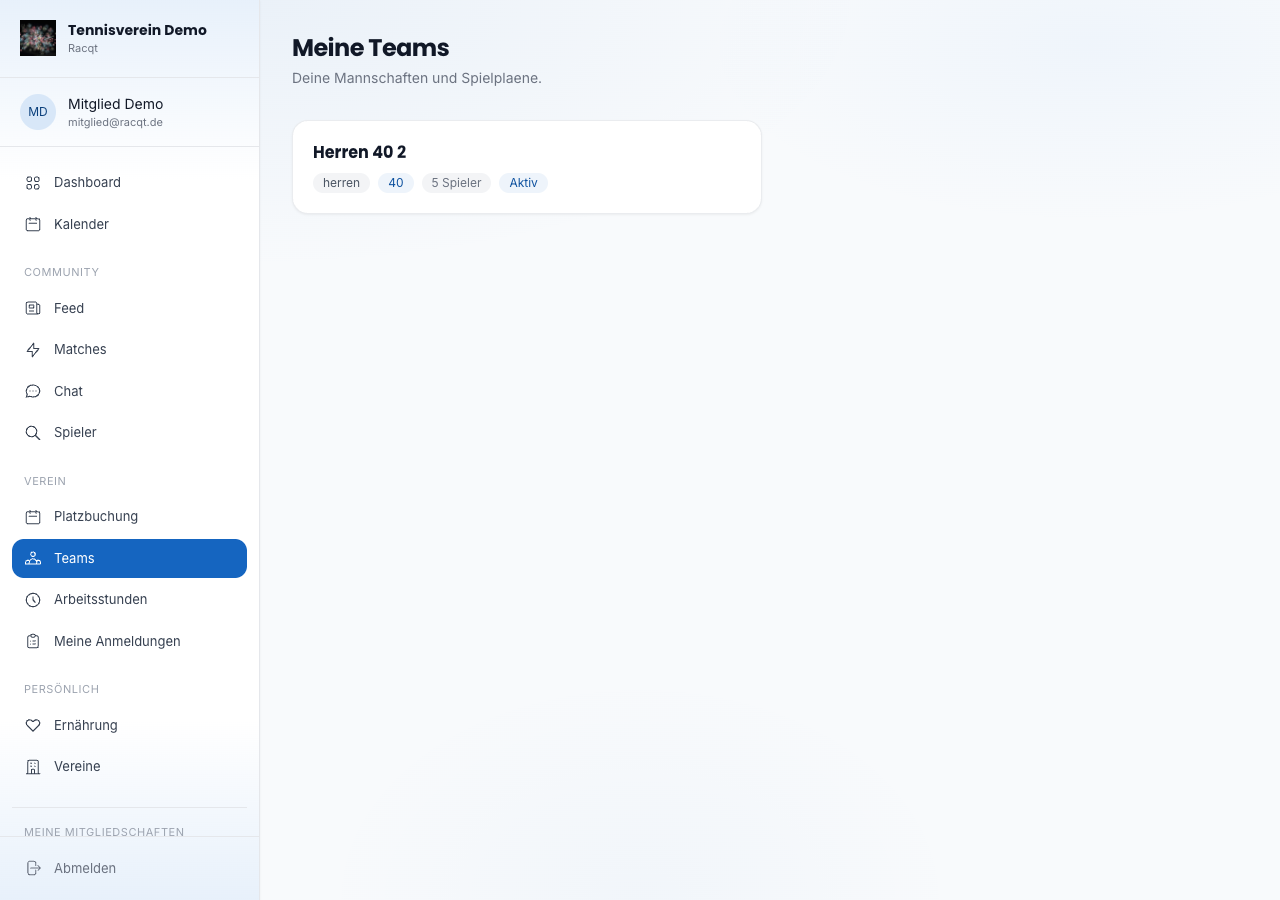
Under “Mannschaften” (Teams) all teams you’re assigned to are listed. Each tile shows the name, gender, age group and number of players.
Accepting an invitation to a team
If a club invites you to a team by email, you get a message with the team’s name. Then sign in to the Racqt app — or register with exactly this email address — and open “Mannschaften”: the invitation is waiting for you there — with the names of the team and the club so you know straight away who’s asking. You decide yourself whether to accept or decline. Only once you accept do you belong to the team and see fixtures, table and squad.
Fixtures
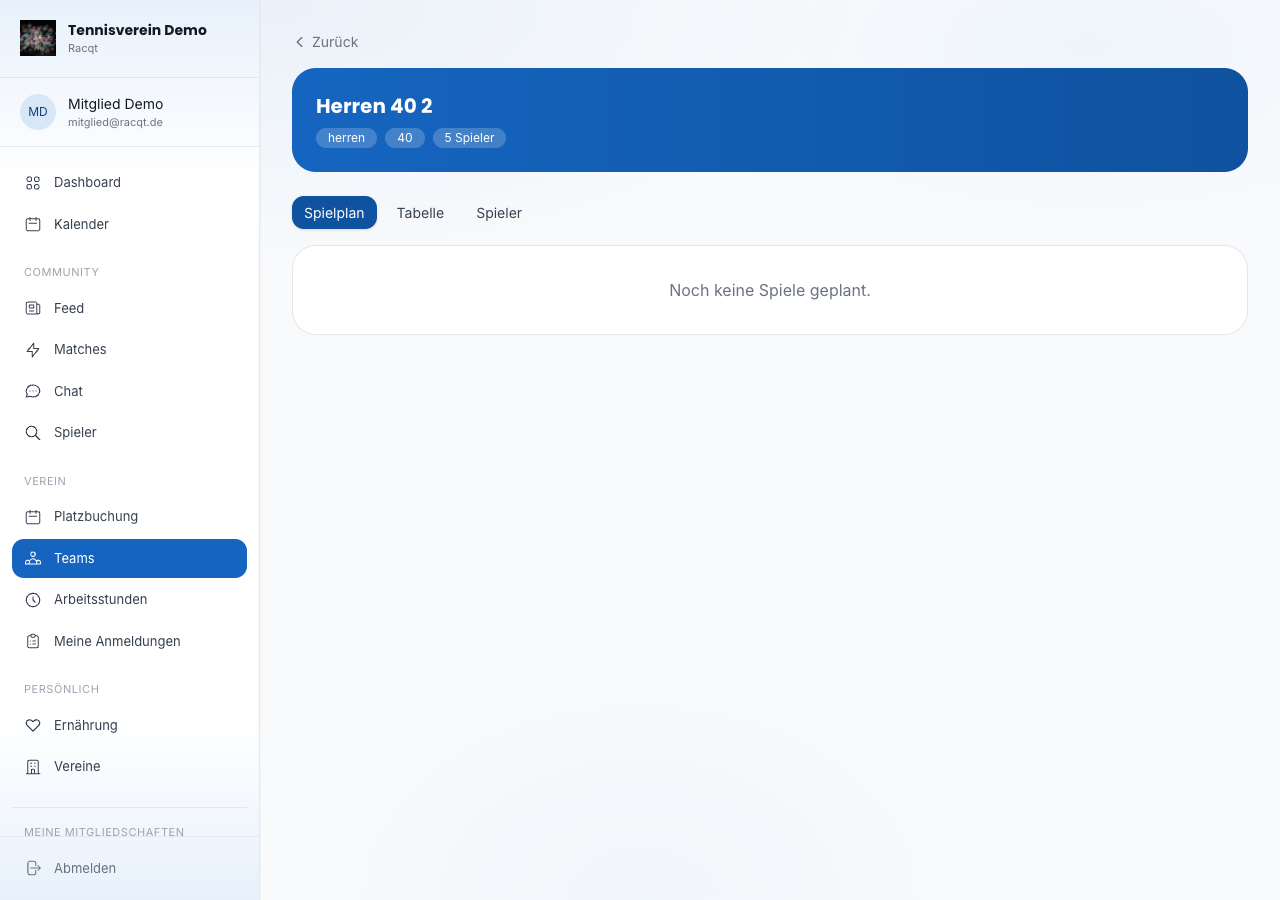
The fixtures (“Spielplan”) show all matches of the season in a list — with opponent, date, time and venue. Results of past matches are right next to them. If you open a match that has been played, you see the result in detail: all singles and doubles with the names on both sides, the sets and the winner — provided your club has fetched the match reports from nuLiga.
For all upcoming matches you state your availability directly in the match card: “Verfügbar” (Available), “Vielleicht” (Maybe) or “Nicht verfügbar” (Not available) — one click is enough. Your current answer is marked, and you can change it at any time as long as the match hasn’t been played — just tap another option. Via “Details” you get to the squad overview and can add a note, such as “can only make it from 3 pm”. For past or cancelled matches your answer is only displayed. The team manager sees all replies in the administration.
If the whole season is already fixed, you don’t have to answer every match individually: with “Allen zusagen” (Confirm all) or “Allen absagen” (Decline all) you reply for all open matches at once. Matches you’ve already answered individually stay unchanged — so a deliberate decline for a specific date isn’t lost. Racqt then tells you how many matches were updated and how many had already been answered.
Table
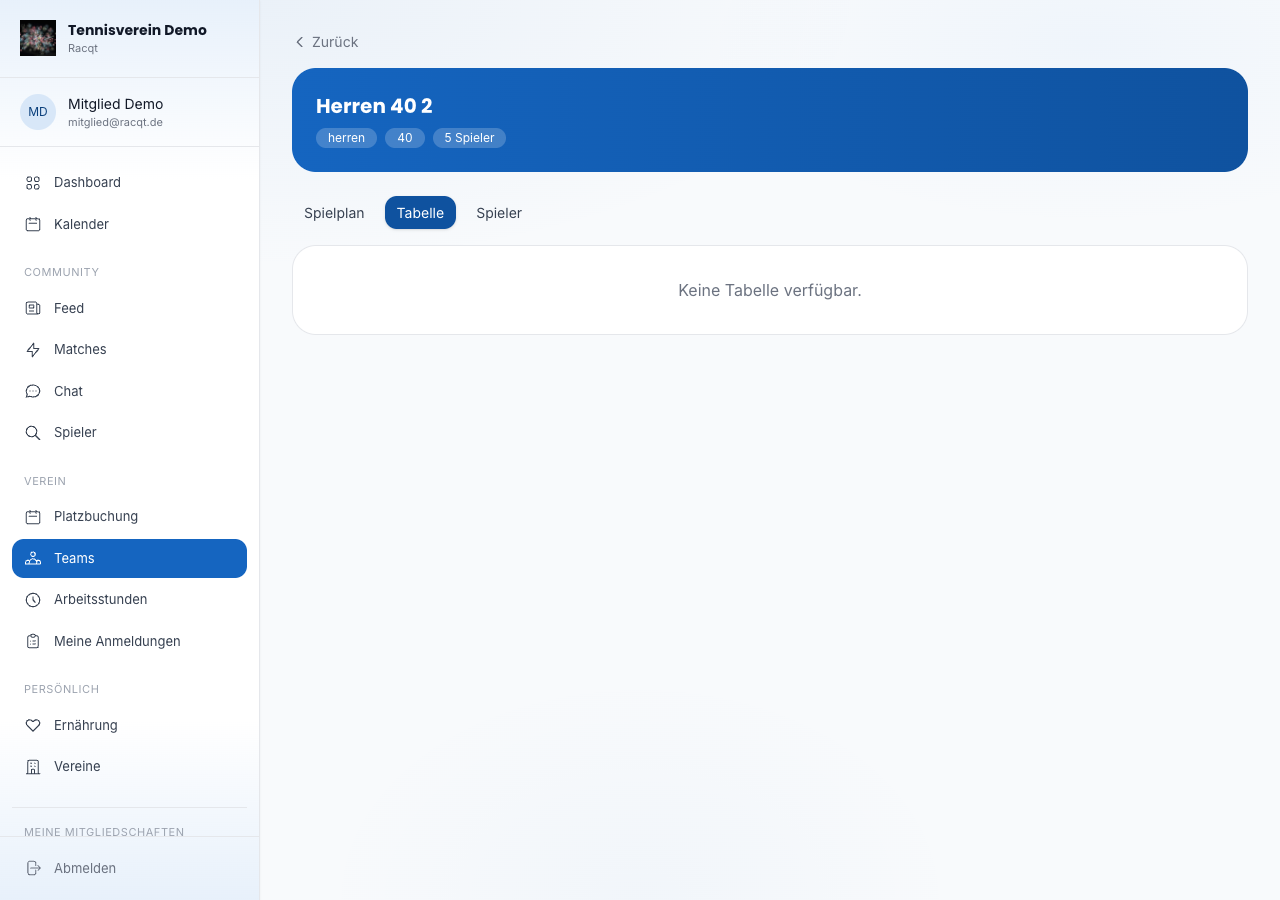
Right below the team header is the current league table — position, matches played, wins, draws, losses and points, with your own team highlighted.
Players
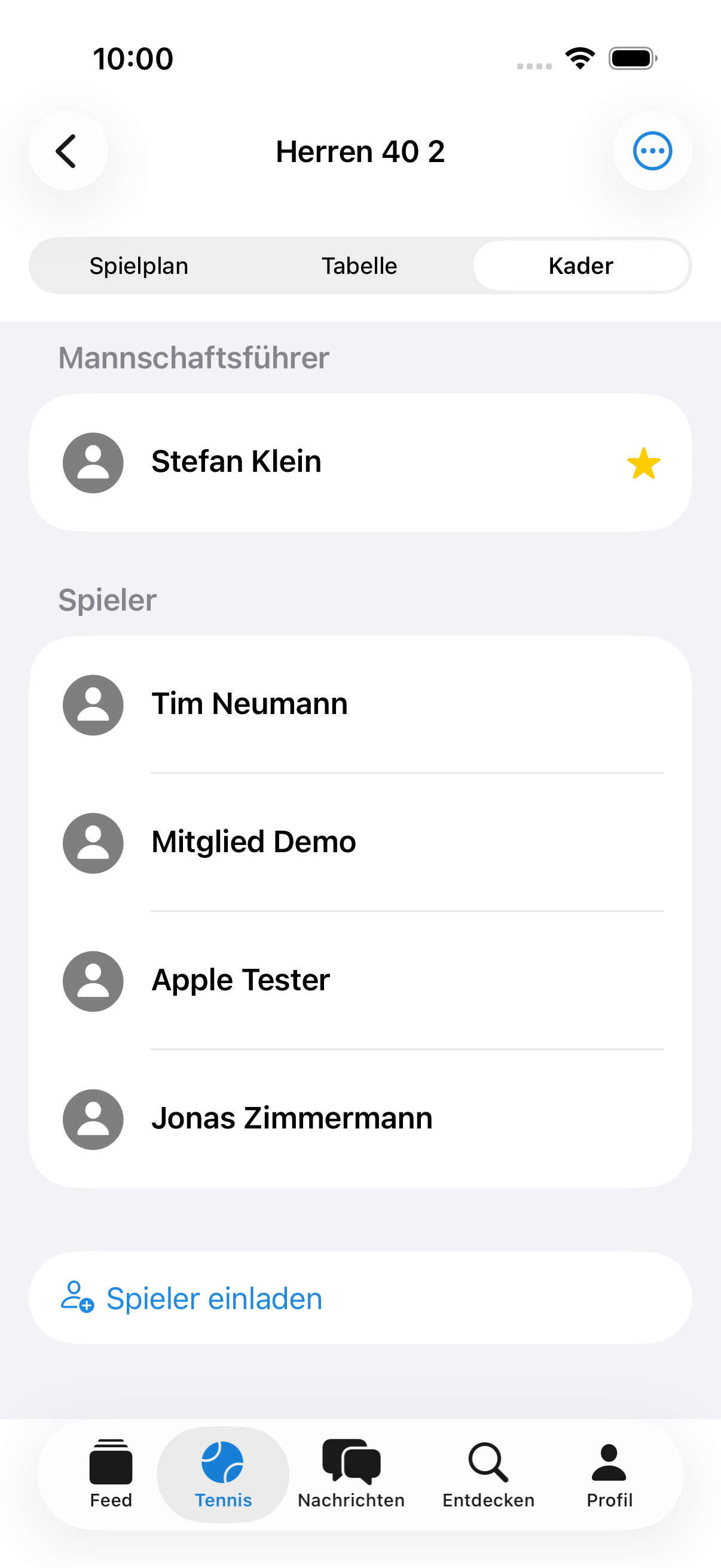
The “Spieler” (Players) section lists all members of the team — the team captain first, then all players.
Who belongs to the team is set by the club in the dashboard — see Managing teams & seasons. In the portal and in the apps, the squad is view-only.
Team chat
Every team has its own chat — and anyone who belongs to the team is automatically in it, without having to set anything up. You’ll find it directly on the team page via the “Mannschaftschat” (Team chat) button and in your chat overview under “Mein Verein” (My club), just like the club chat. Handy for sorting out lifts or agreeing the costs of a match day among yourselves.
In the apps
Fixtures, table, players and the team chat are available in the same way in the iPhone and Android apps — with the same columns as in the portal, split into three tabs below the team header in the apps. You report your availability there directly in the match card too, the bulk reply for all open matches is above the fixtures, and the match cards show at a glance how many from the team have already confirmed or declined. You open the team chat directly from the team — handy for sorting out lifts or agreeing the costs of a match day.
Related articles: Booking a court