 Racqt
RacqtWeb
Teams & season planning
Create teams, assign members, import fixtures and manage seasons with registration status.
On this page
Racqt covers a tennis club’s entire playing operations: from team management and season registration to fixtures. All areas are reached via Sport in the sidebar.
Teams are maintained exclusively here in the dashboard — created, given players and linked to the league. In the member portal and the apps, teams are view-only: players see fixtures, table and squad there and report their availability, but can’t change anything. That way there’s exactly one place where the squad is put together.
Creating teams
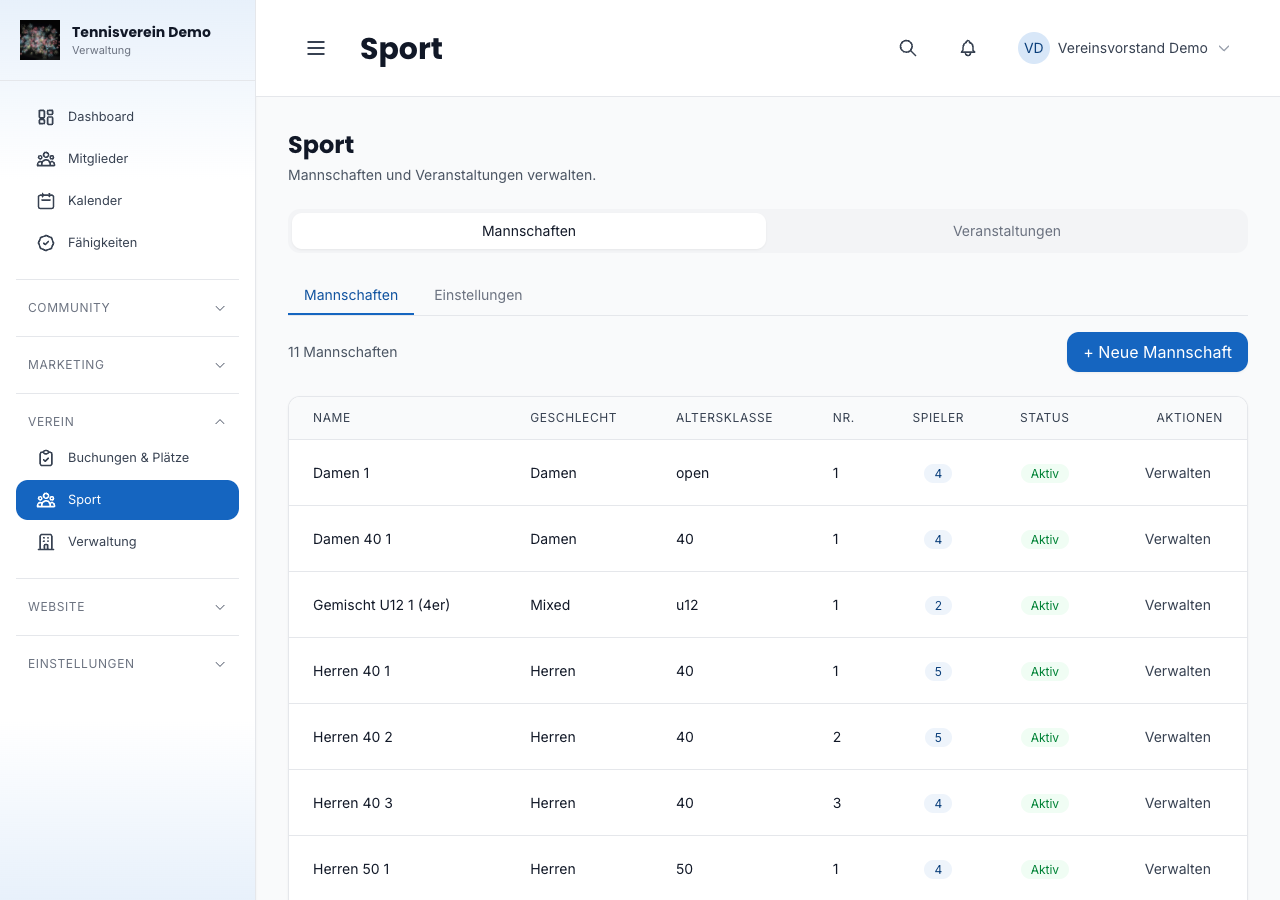
Under Sport › Mannschaften (Teams) you manage all the club’s active teams. Click Neue Mannschaft (New team) to create one. Fill in:
- Name — for example “Herren 40 I” (Men’s 40 I)
- Geschlecht (gender) — men, women, boys, girls or mixed
- Altersklasse (age group) — open, 30, 40, 50 … 70, U18, U16, U14, U12, U10
Assigning members to a team
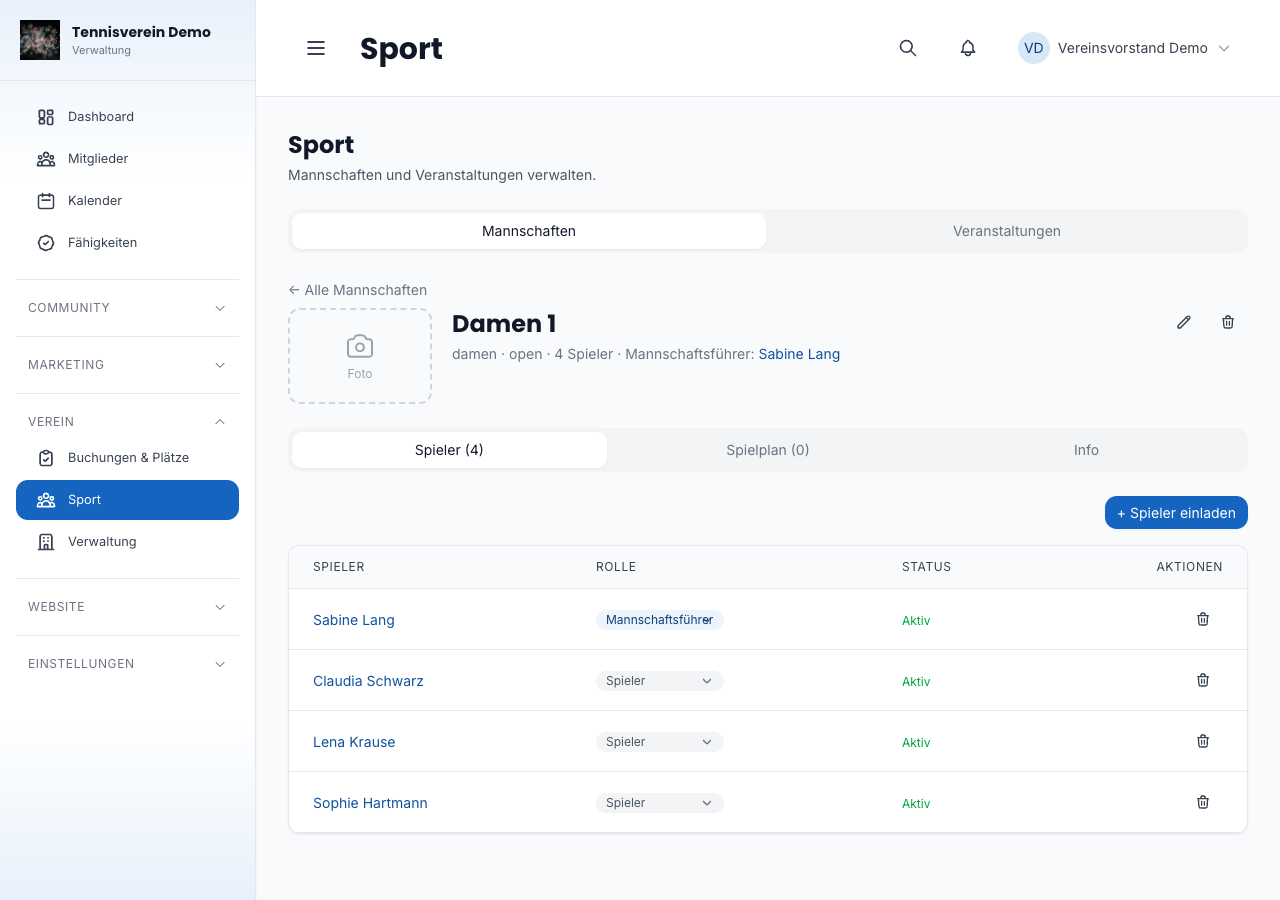
In a team’s detail view (Mitglieder, Members tab) you can add club members and give them a role within the team. The Mannschaftsführer (team captain) has a special position and is shown separately in the dashboard.
You have two options:
- Aus Mitgliedern (From members) — the familiar selection from your club’s member list. Active members who aren’t in this team yet are shown.
- Per E-Mail (By email) — you enter the email address (and ideally the name), and Racqt sends an invitation. The person decides themselves whether to accept: they sign in to the Racqt app — or register first — and accept the invitation under Mannschaften (Teams). Until then they appear in the Mitglieder tab with the note Einladung ausstehend (Invitation pending); only once they accept do they belong to the squad.
Players basically come from your own club. If someone from another club is helping out, for example in a joint team, tick Als Gast einladen (kein Vereinsmitglied) (Invite as guest, not a club member) when inviting by email — so it stays clear who belongs to the club and who doesn’t. If the person isn’t a member of your club, this tick is needed for them to be able to accept the invitation.
Importing fixtures (nuLiga / cup)
For teams playing in the association league or cup, the fixtures can be imported directly from nuLiga (the German associations’ league system). To do so, store the league URL and the cup URL in the team’s detail view. Racqt then loads the match dates and shows them in the Spielplan (Fixtures) tab. Court blocks for home matches can be created automatically from the fixtures.
For matches already played, Racqt also fetches the match reports from nuLiga when syncing: all singles and doubles with names, sets and winner. After the import your players see these details in the app and the portal when they open a match. New reports are added automatically with every further sync.
The league link is only maintained here. Once it’s set, fixtures and table appear automatically everywhere — in the portal and in both apps.
Every imported match day is also created as a date in the club calendar — with opponent, date and whether it’s a home or away match. If you start the import again, the previous match dates are replaced instead of duplicated; so you can reload at any time if the association changes the fixtures.
If the sync with nuLiga doesn’t work for once — for example because the association’s site is unreachable — Racqt now shows this directly in the team view. Your existing data stays unchanged; simply try again a bit later.
Under Sport › Einstellungen (Settings) you set how many courts are reserved per home match (summer/winter) and which courts take priority.
Managing seasons
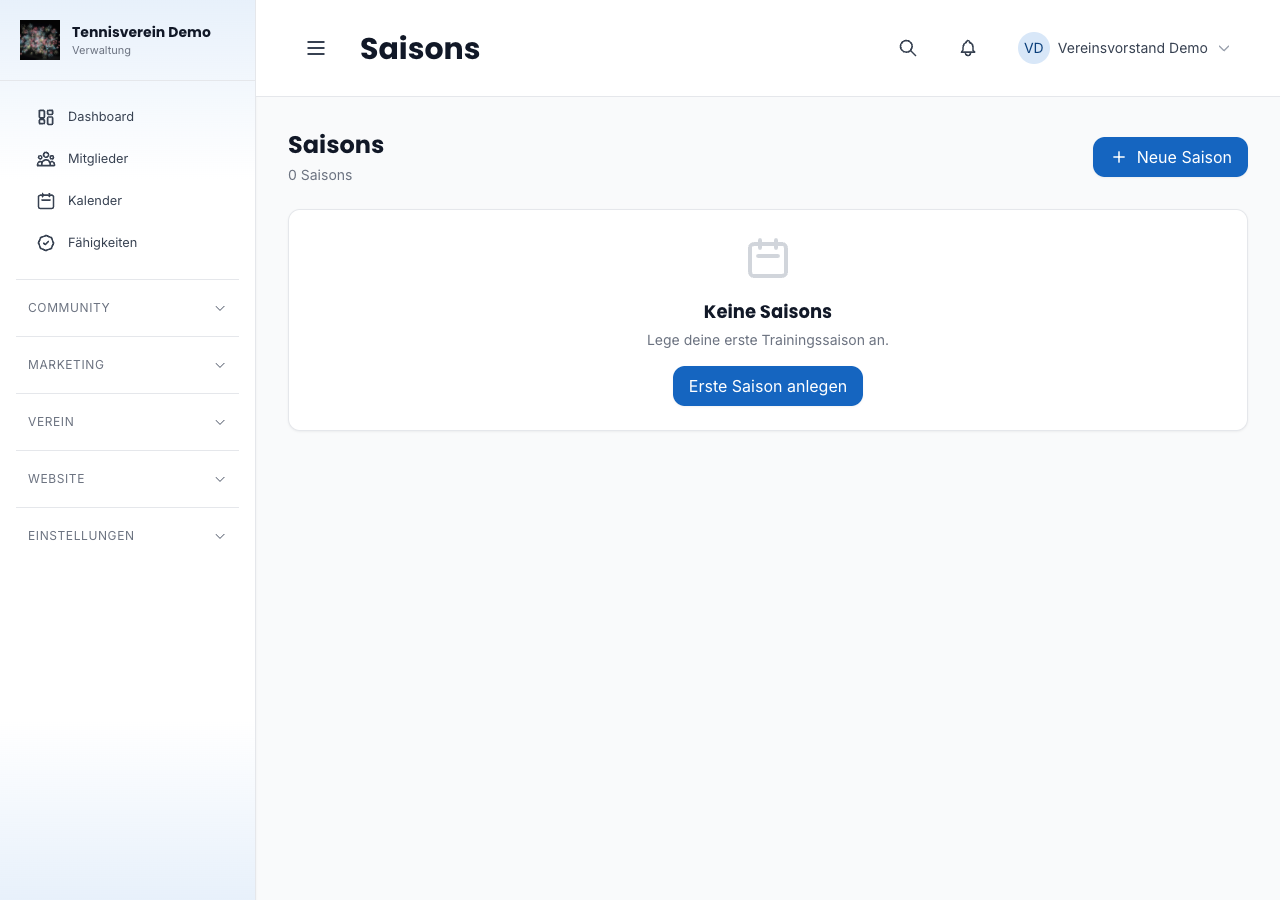
Under Saisons (Seasons) you plan training seasons with a registration period, season period and weekly training times. Every season goes through these statuses:
| Status | Meaning |
|---|---|
| Geplant (planned) | Not publicly visible yet |
| Anmeldung offen (registration open) | Members can register |
| Anmeldung geschlossen (registration closed) | No new registrations possible |
| Aktiv (active) | Season is running |
| Abgeschlossen (completed) | Season ended |
| Archiviert (archived) | Hidden from the overview |
Season dashboard: evaluating registrations
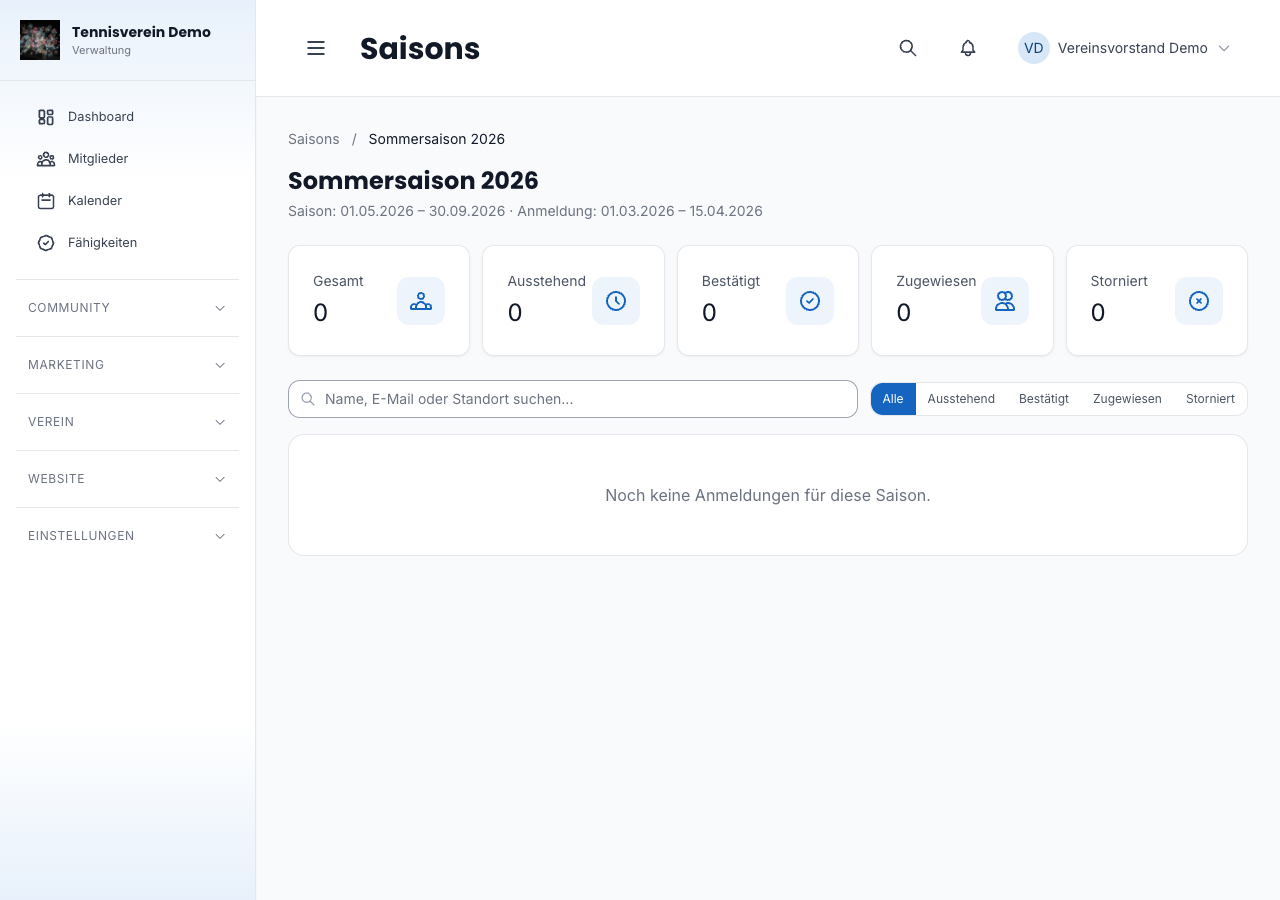
Clicking a season opens the season dashboard. Five key figure tiles show at a glance: total registrations, pending, confirmed, assigned and cancelled registrations.
Below you’ll find the complete registration list. You can search by name, email or location and filter by status. Each registration can be set to another status directly in the dashboard — for example from “Ausstehend” (Pending) to “Bestätigt” (Confirmed) once a training slot has been assigned.
Related articles: Member management · Dashboard for clubs