 Racqt
RacqtWeb
Contact form for clubs and tennis schools
Visitors to your public website write to you directly via a form in your design — with your contact details, your contact persons and a map of your location.
On this page
Via the contact form on your public website, interested people, new members or parents can get in touch with you directly – without being redirected to the general Racqt site. The form appears in your organisation’s chosen design and shows the contact details you’ve stored.
How visitors reach the form
The “Kontakt” (Contact) link in your website’s footer always leads to your own
contact page (/kontakt). There visitors see your club or school branding and
can write you a message.
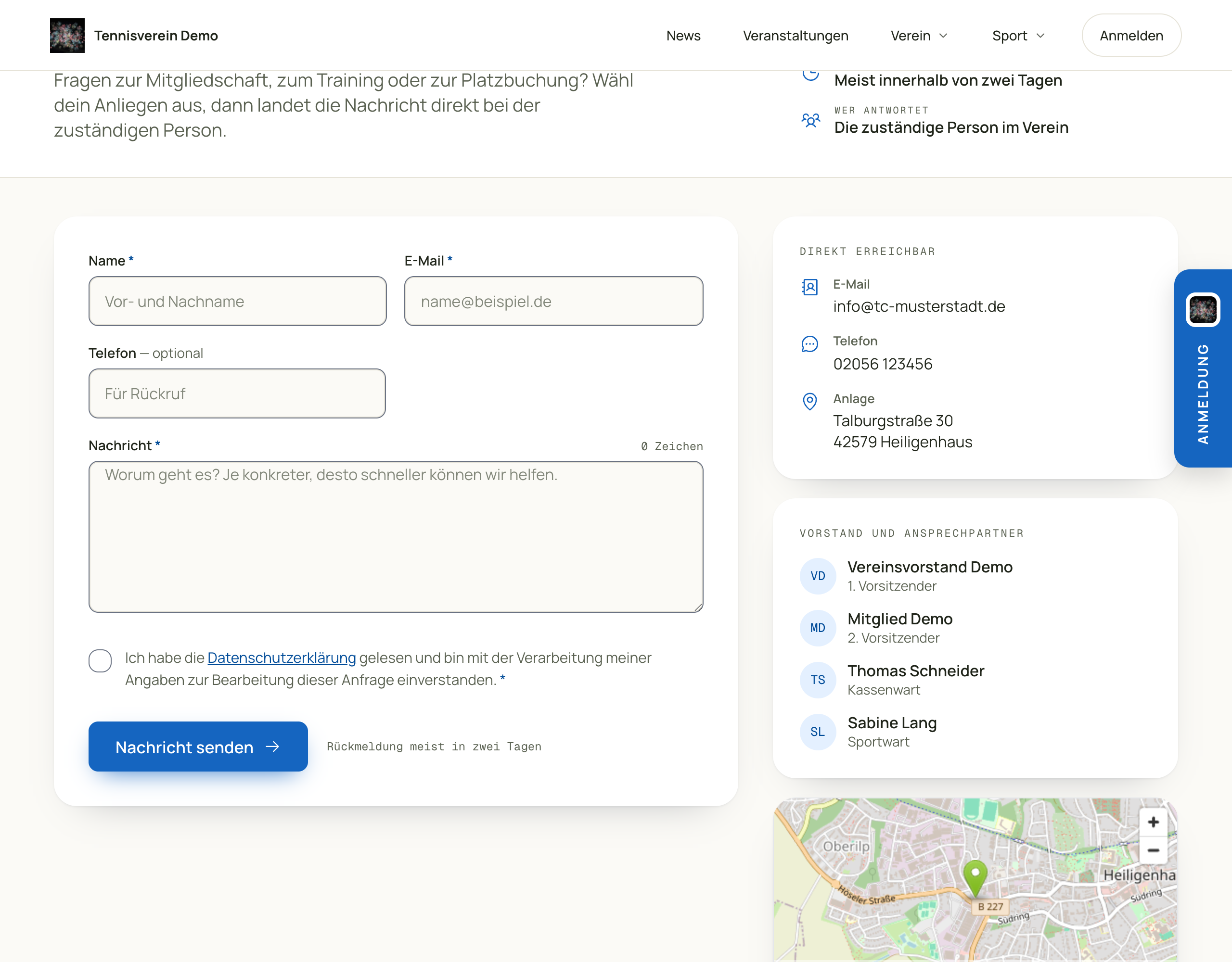
What visitors see
- Your organisation in focus: your organisation’s logo, name and colours in the chosen theme.
- Contact form: name, email and message are required; a phone number for a call-back is optional.
- Contact details: email address, phone number and postal address, if stored.
- Contact persons: your committee or coaching team with their roles.
- Location map: appears after visitors consent. We determine the point from your address — you don’t have to enter coordinates.
Receiving enquiries
After submitting, the message goes to your organisation’s email address, which you’ve stored under Einstellungen › Allgemein (Settings › General). If no address is entered there, we forward the enquiry to Racqt support so that no message is lost.
If sending doesn’t work for once, for example because the mail server is disrupted, the form tells the person writing straight away — and gives them your club’s email address where they can still reach you.
Anyone who writes immediately gets an acknowledgement by email. You can reply to the enquiry directly — the writer’s address is in the message.
Keeping the details up to date
For the form to be displayed in full, you should store the following:
- Email and phone: Einstellungen › Allgemein › Kontakt (Settings › General › Contact).
- Address: Einstellungen › Allgemein › Standort (Settings › General › Location). The map is created from it. Coordinates are optional — if they’re maintained, they take precedence.
- Logo and colours: Einstellungen › Erscheinungsbild (Settings › Appearance).
Related articles: Club website (CMS) · Settings & branding