 Racqt
RacqtComing soon Web
Events
Plan and manage club events with date, time, place, category and optional registration.
Not released yet. This feature belongs to version 1.7.0 and will be available shortly. To the changelog
On this page
Under “Veranstaltungen” (Events) (Dashboard › Sport › Veranstaltungen) you record all club events — from weekly training to the season tournament. Every event is visible to members in the portal.
Creating events
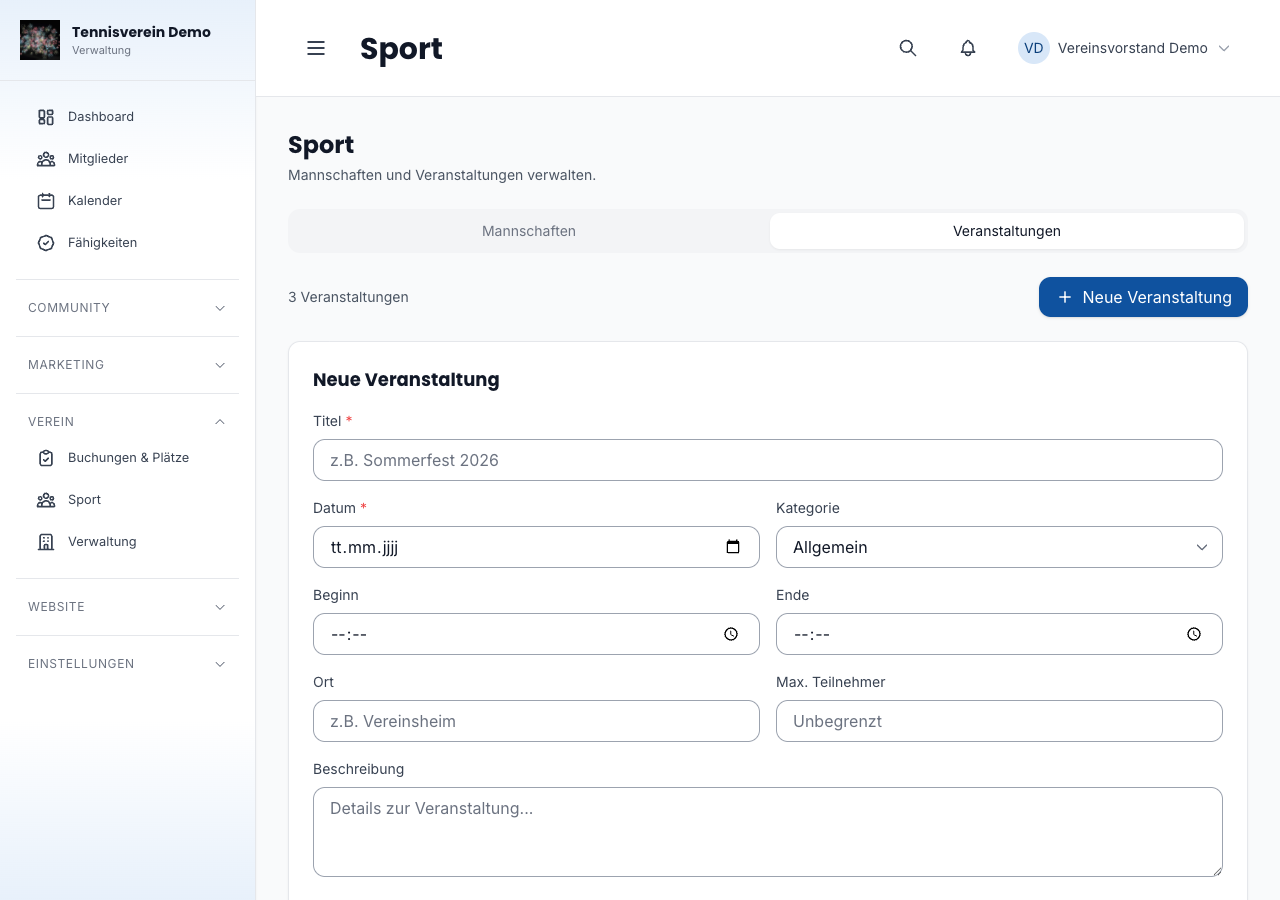
Click “Neue Veranstaltung” (New event) to open the form. Title and date are required. Optionally you can add times (start and end), a place and a maximum number of participants. Choose one of the five categories: Allgemein (general), Turnier (tournament), Gesellig (social), Training or Versammlung (meeting) — they appear in colour in the calendar and the list view.
Turning on registration
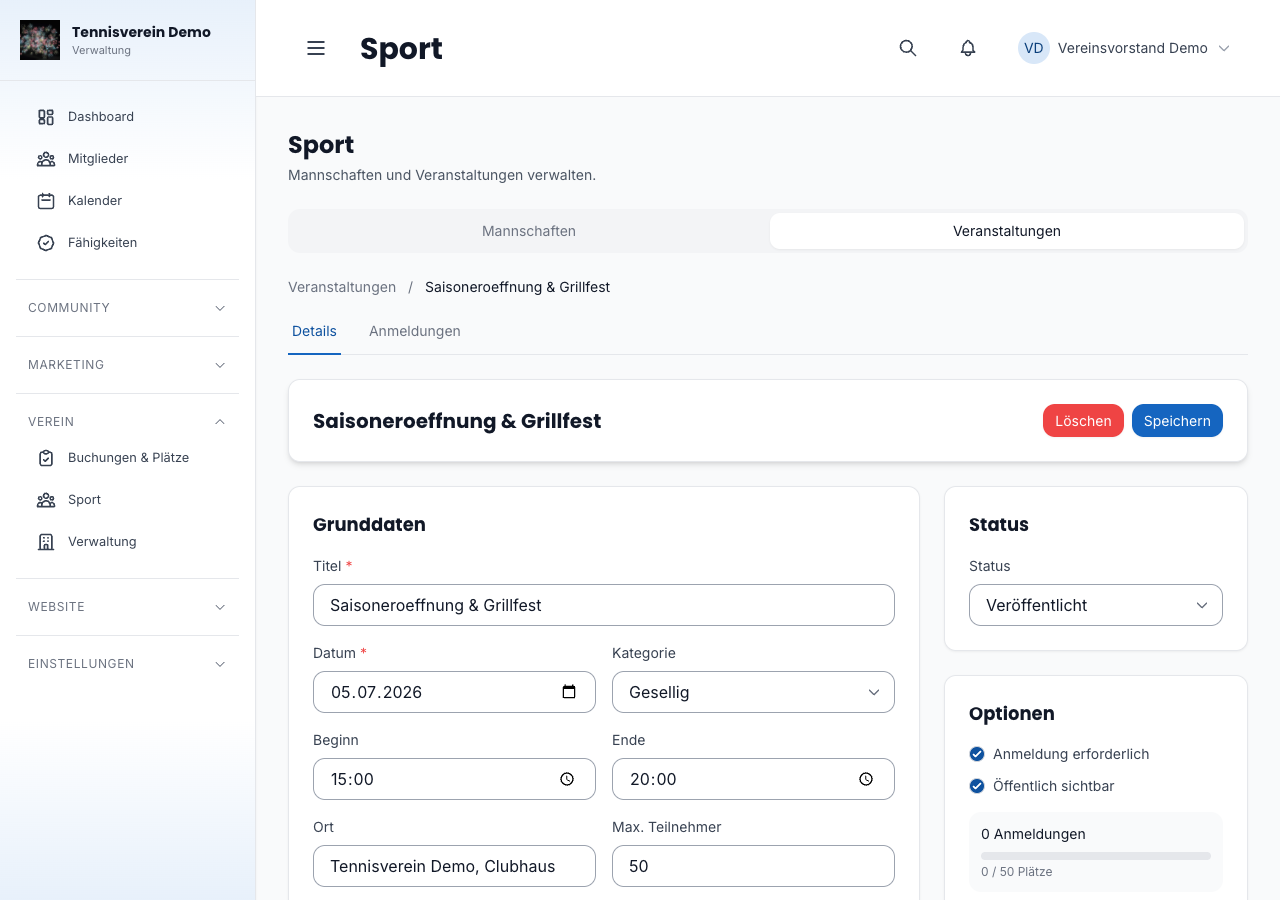
Tick “Anmeldung erforderlich” (Registration required) so members can register via the portal. If you enter a maximum number of participants, it’s shown next to the current number of registrations. An event’s detail page shows all registrations in a table; from there you can also keep a waiting list, if enabled.
Editing and deleting events
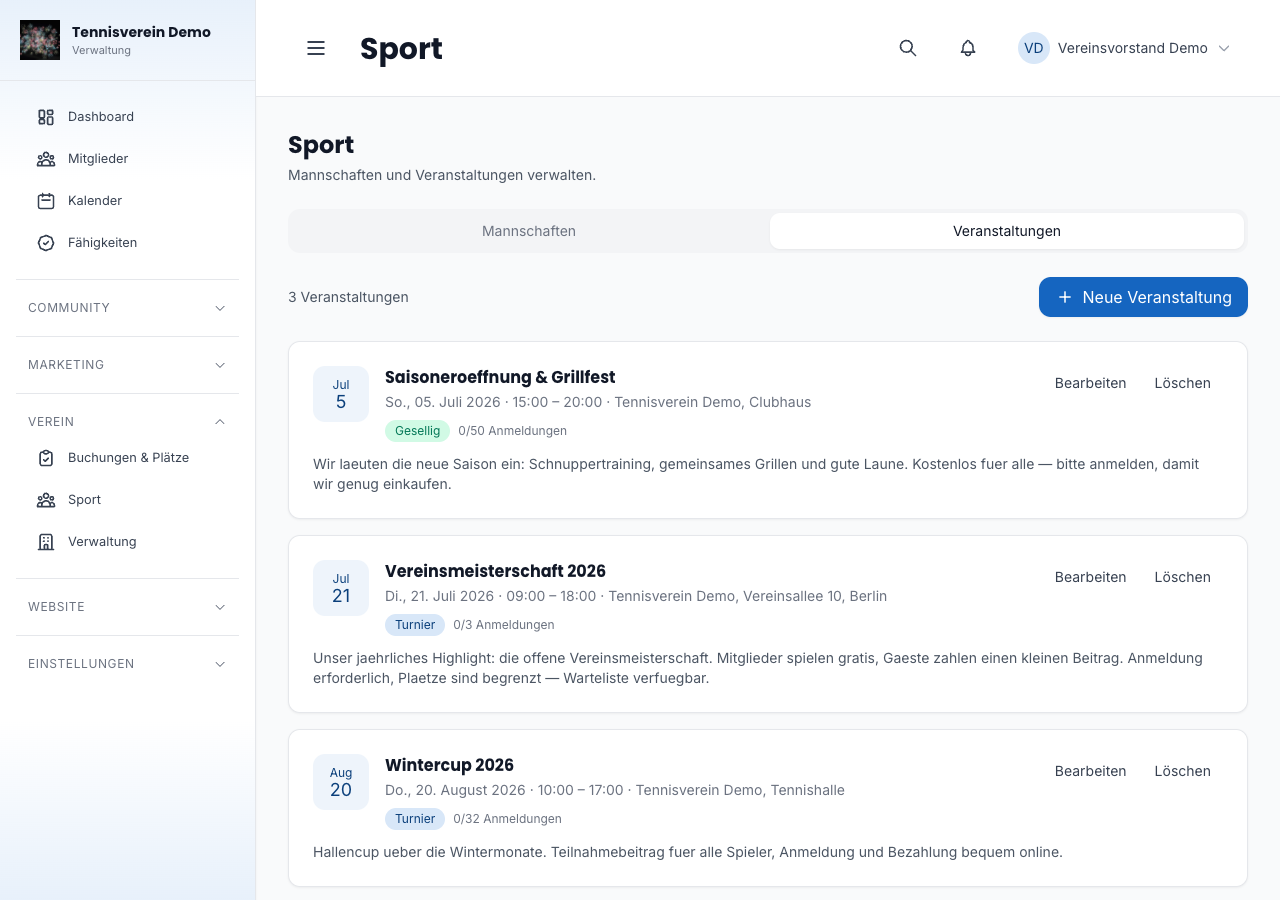
Open an event by clicking “Bearbeiten” (Edit). All fields — including date, time, place, category and registration settings — can be changed afterwards. To remove an event for good, there’s a delete button in the list view; a confirmation prevents accidental deletion.
Event image for the club website
From Racqt 1.7 you give an event an event image when editing it: under “Terminbild” (Event image) click “Bild auswählen” (Choose image) and pick a photo from your media library or upload a new one. The image appears on your club website on the event’s page and in the large menu when it’s the next event. Without an image, the website shows a designed area with the date – “Entfernen” (Remove) takes an image out again.
Related articles: Managing courts & bookings · News & newsletter
In the changelog:1.7.0