 Racqt
RacqtComing soon Web
Member management
Create members, import them via CSV, assign roles, send invitations, and manage categories and the skills catalogue.
Not released yet. This feature belongs to version 1.4.0, 1.5.1, 1.6.0, 1.7.0 and will be available shortly. To the changelog
On this page
Member management is the heart of the club dashboard. Here you maintain all members, assign roles, send invitations by email and always keep an eye on fee status. The dashboard is in German; we name the German labels.
Member list
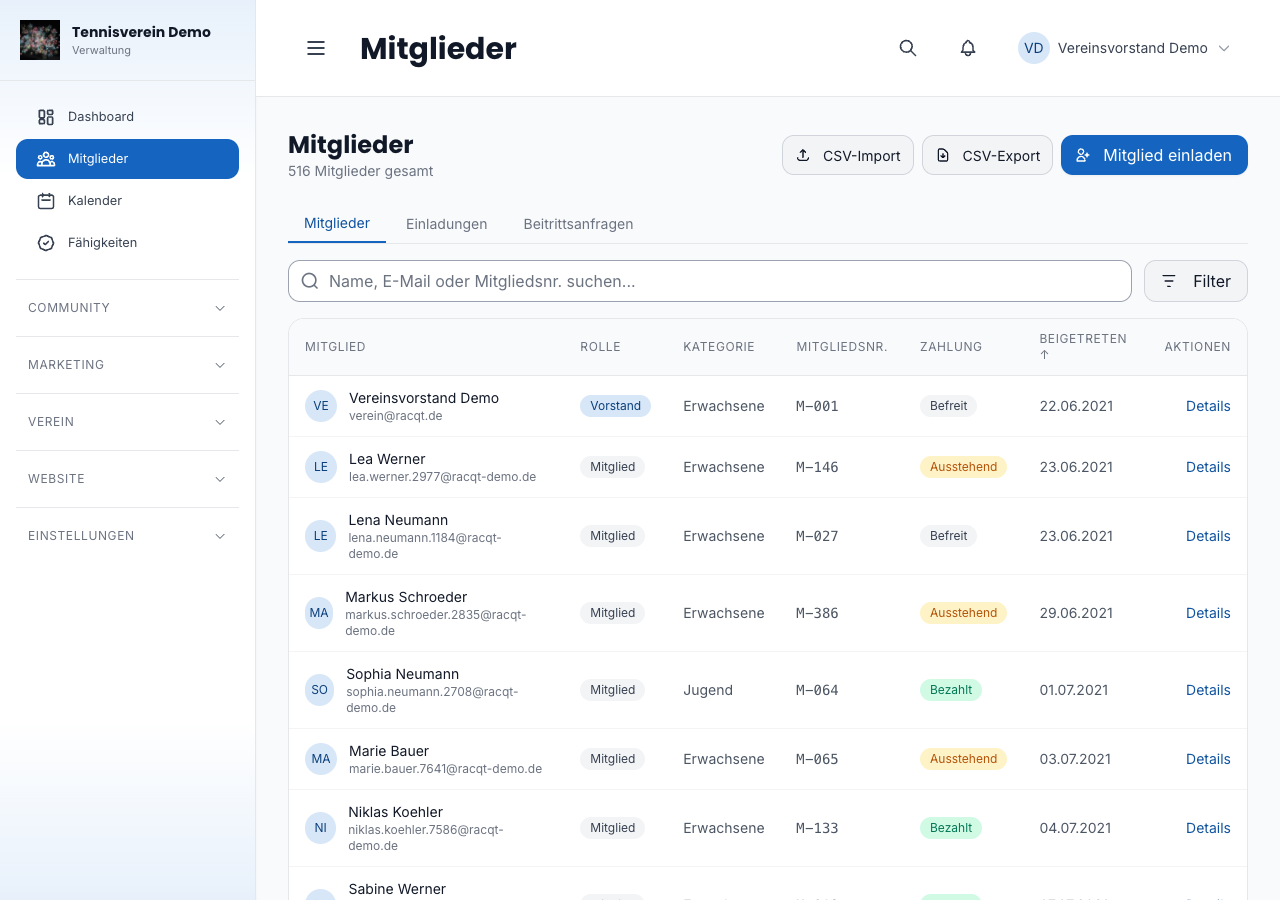
Under Mitglieder (Members) you’ll find a table of all club members. You can search by name, email or membership number, filter by role, fee status or membership category, and narrow down by skills. A click on a column heading sorts by it, a second reverses the order. When sorting by name, Racqt sorts by the name as it appears in the list.
Under Spalten (Columns) you choose what you want to see — age and joining date can be added, for example. Your selection is saved for next time.
Open invitations and membership requests from online sign-up appear in the Einladungen (Invitations) and Beitrittsanfragen (Membership requests) tabs right next to the member list.
Creating a member without an email address
Not every member has their own email address — children usually don’t, and neither do many non-playing members. With Mitglied erfassen (Record member) you still create them in full: salutation, name, date of birth, category and joining date are enough.
Such members are completely normal members. They have a membership number, pay fees and appear in every list — they just don’t use the app.
If there are two people with the same name and date of birth, Racqt asks to be on the safe side. Namesakes really do exist, so you can still create the member.
Using the app later after all
On the detail page of a member without an account you’ll find Konto einladen (Invite account). Enter the email address, and the person gets an invitation. Important: no second record is created — membership number, fees and history stay exactly as they are.
If the person already has a Racqt account, they also get an invitation: only when they accept is their account linked to the member. That way everyone decides for themselves which club may see their profile. Until then the invitation is in the Einladungen tab. Racqt sends the email in the background — you get feedback immediately that the invitation is being sent. If the mail server hiccups, Racqt delivers it as soon as it’s working again.
As long as the person hasn’t accepted yet, the detail page shows Einladung ausstehend (Invitation pending) for the account — with the invited address, the day the invitation was sent and how long it’s valid. If the email didn’t arrive, click Erneut senden (Send again). If you mistyped the address, withdraw the invitation with Zurückziehen (Withdraw); the link in the email then no longer works, and you can invite the right address straight away.
Family: who pays for whom
On the detail page you enter under Familie (Family) who pays the fee. If one parent pays for two children, invoice and direct debit go through this one person — the receipt still shows whom the fee is for. When collecting, this results in one debit instead of three, and the club pays one bank charge instead of three.
For children whose parents aren’t members themselves, there’s the Erziehungsberechtigte(r) (parent/guardian) field — a contact the club can reach.
Joining, cancellation and leaving
The Eintrittsdatum (joining date) is the day someone joined the club — not the day the record was created in Racqt. When taking over old records, you enter the real date here.
When a cancellation arrives, click Kündigung erfassen (Record cancellation) and enter the date received. Racqt works out the right leaving date from your statutes’ notice period (adjustable in the settings). With “three months to the end of the year”, a cancellation from 4 May takes effect on 31 December. You can change the date — clubs are sometimes accommodating in individual cases.
Until the leaving date the member stays active: they may keep playing and booking, and the fee for the current period remains due. Withdrawing a cancellation is one click.
Cancellation from the app
Members can also cancel themselves in the iPhone or Android app. Racqt suggests the leaving date from your notice period. The request lands with you: admins and the committee get a notification, the member list shows Kündigung eingereicht (Cancellation submitted) for the member, and in the member record you see in the Mitgliedschaft (Membership) card when the cancellation was received, on which date the leaving takes effect and – if given – the reason.
- Kündigung bestätigen (Confirm cancellation) opens the cancellation form, prefilled with the details from the request. If everything fits, you confirm a second time. If you want to be accommodating, change the leaving date first.
- Ablehnen (Decline) fits when something needs clarifying – for example because the cancellation should go through someone else. You can enter a reason; the member gets it as a notification. The membership then continues unchanged.
Both then appear in the Aktivität (Activity) tab. If the member withdraws the request themselves, the note disappears. Kündigung zurücknehmen (Withdraw cancellation) also clears a request that’s still open.
Members who outgrow their category
If you store age limits for your membership categories, Racqt shows you who no longer fits — for example juniors who have come of age. The category on the member stays as it is. But the fee run bills according to age: if the assigned category no longer fits, it uses the category whose age range the member now falls into — and if there isn’t one, the standard rate. That way nobody accidentally keeps paying the junior fee, and nobody silently drops out of the run.
Family rates and categories without an age limit always stay as you assigned them. Take a look at the preview before every fee run: it shows the amount that will actually be charged.
Inviting a member
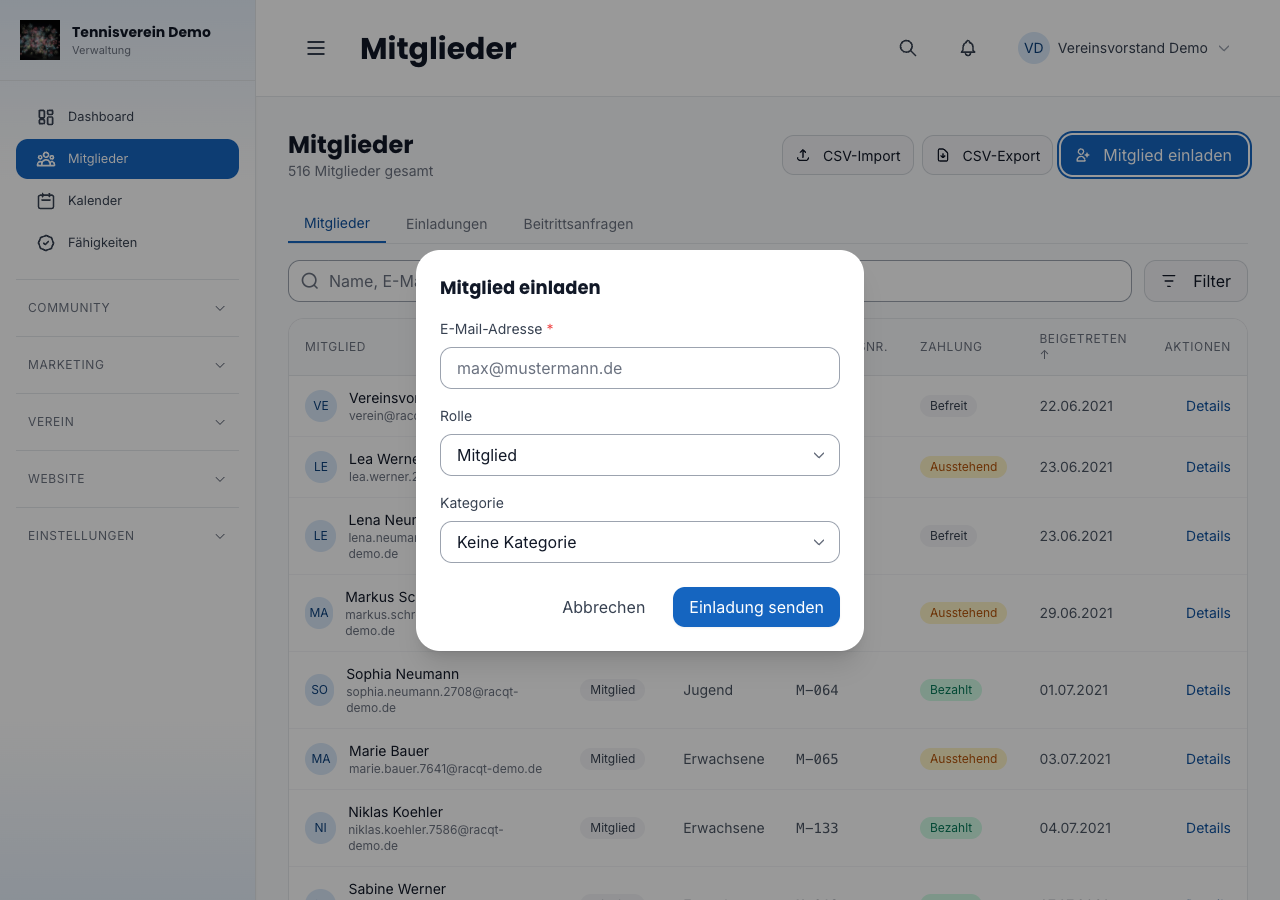
Click Mitglied einladen (Invite member) to send an invitation by email. Fill in first name, last name and email address, optionally assign a category and role, and send the invitation. The person receives an email with an invitation link. They become a member as soon as they accept the invitation — with a new or their existing Racqt account. As long as the invitation is open, you can’t send a second one to the same address.
Importing members via CSV
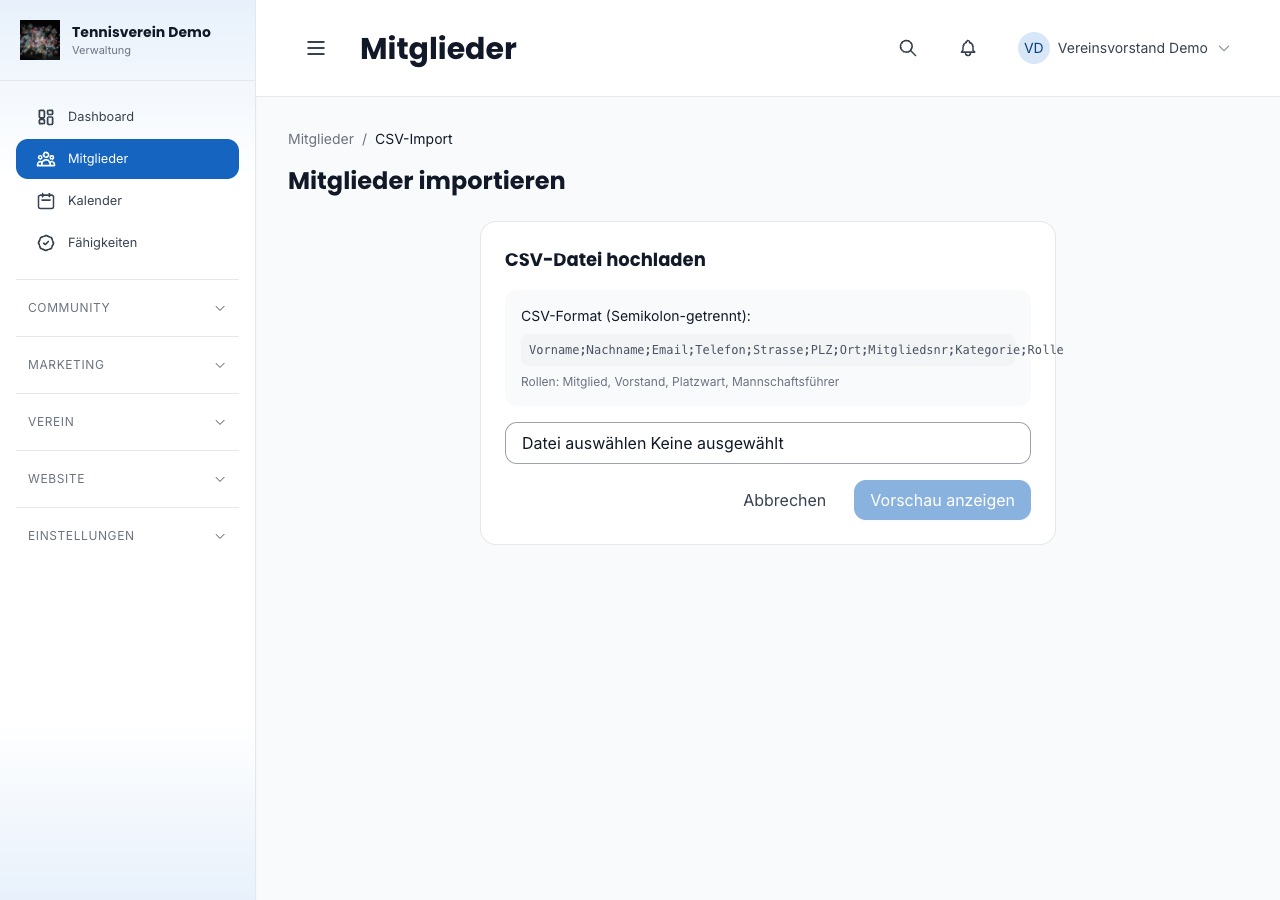
For the initial setup or when switching systems, members can be imported conveniently via a CSV file. To do so, open Mitglieder › CSV-Import (Members › CSV import).
Switching from Excel or other software right now? The switching guide shows all columns, provides a ready-made template to download and explains what is transferred and what isn’t.
The expected format is semicolon-separated with these columns (in this order; the column names stay in German):
Anrede;Vorname;Nachname;Geburtsdatum;Email;Telefon;Strasse;PLZ;Ort;Mitgliedsnr;Kategorie;RolleThe email column may stay empty. We store an address entered there as the member’s contact address — no account is created during the import. You give app access later via Konto einladen (Invite account); anyone who already has a Racqt account accepts the invitation with it. We understand the date of birth in German format (01.03.2026) and as an ISO date (2026-03-01).
After uploading, Racqt shows a preview with valid and invalid rows. Only after confirmation are the members actually created. Email addresses that already exist are skipped; with the same name and date of birth you get a warning.
You can also use your own export from the member list as a template: edit, save and upload it again — the import reads the “E-Mail” column from the export just like “Email”. It ignores extra columns such as “Konto” (Account) or “Status”.
If you leave the Rolle (Role) column empty, the person arrives as a member. Racqt only takes over the Rolle column if you’re an admin of your club — as when creating and inviting. Without admin rights, all rows arrive as member. You see this already in the preview right on the row, and after the import it says how many roles were set to member. An admin then assigns the roles in the member’s profile.
Managing membership categories
Membership categories (for example adults, juniors, families, non-playing) are maintained under Beiträge › Beitragssätze (Fees › Fee rates), not in the settings. There you set name, amount, billing cycle, age range and the family fee — details in the help centre article Fees.
Categories are available for selection when inviting new members and control the automatic fee calculation.
Managing the skills catalogue
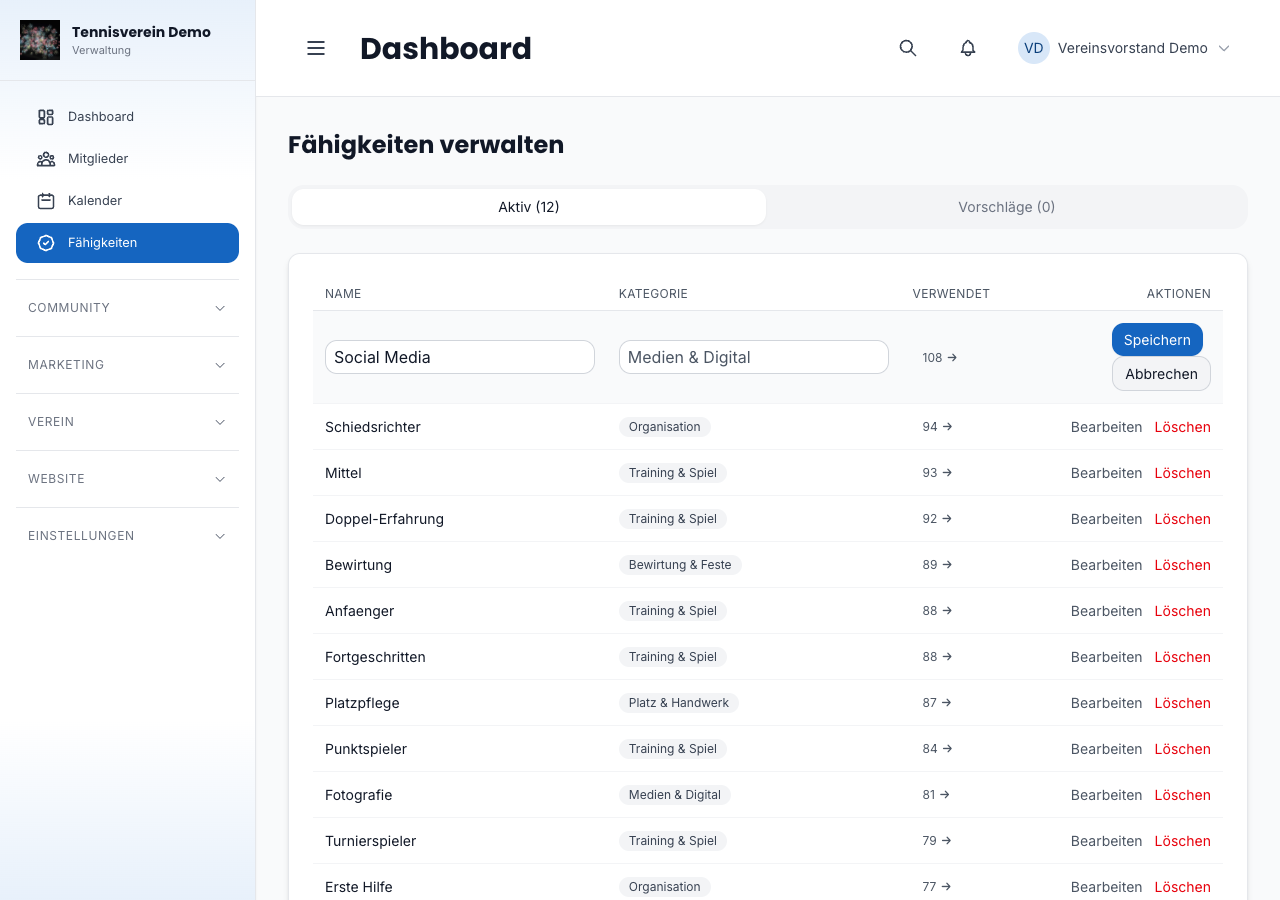
Under Verwaltung › Fähigkeiten (Administration › Skills) you maintain the catalogue your members choose from in the portal — from court duty to the club magazine. The catalogue is part of member maintenance: you’ll find it if your access includes members. But you get its suggestions wherever you assign skills — for students and work sessions too, even if you only have access to those.
- Categories make the catalogue clear: assign each skill a category via Bearbeiten (Edit), such as “Platz & Handwerk” (court & handiwork) or “Organisation”. Categories already in use are suggested as you type. Skills without a category appear to your members under “Sonstiges” (Other).
- Your members’ suggestions land in the “In Prüfung” (Under review) area. When approving, you can give the matching category straight away — after that the skill is available to all members. You decline unsuitable suggestions with one click.
- Your members choose their skills in the portal under Profile › Skills. In the member list and for work sessions you can filter specifically by these skills.
Roles and permissions
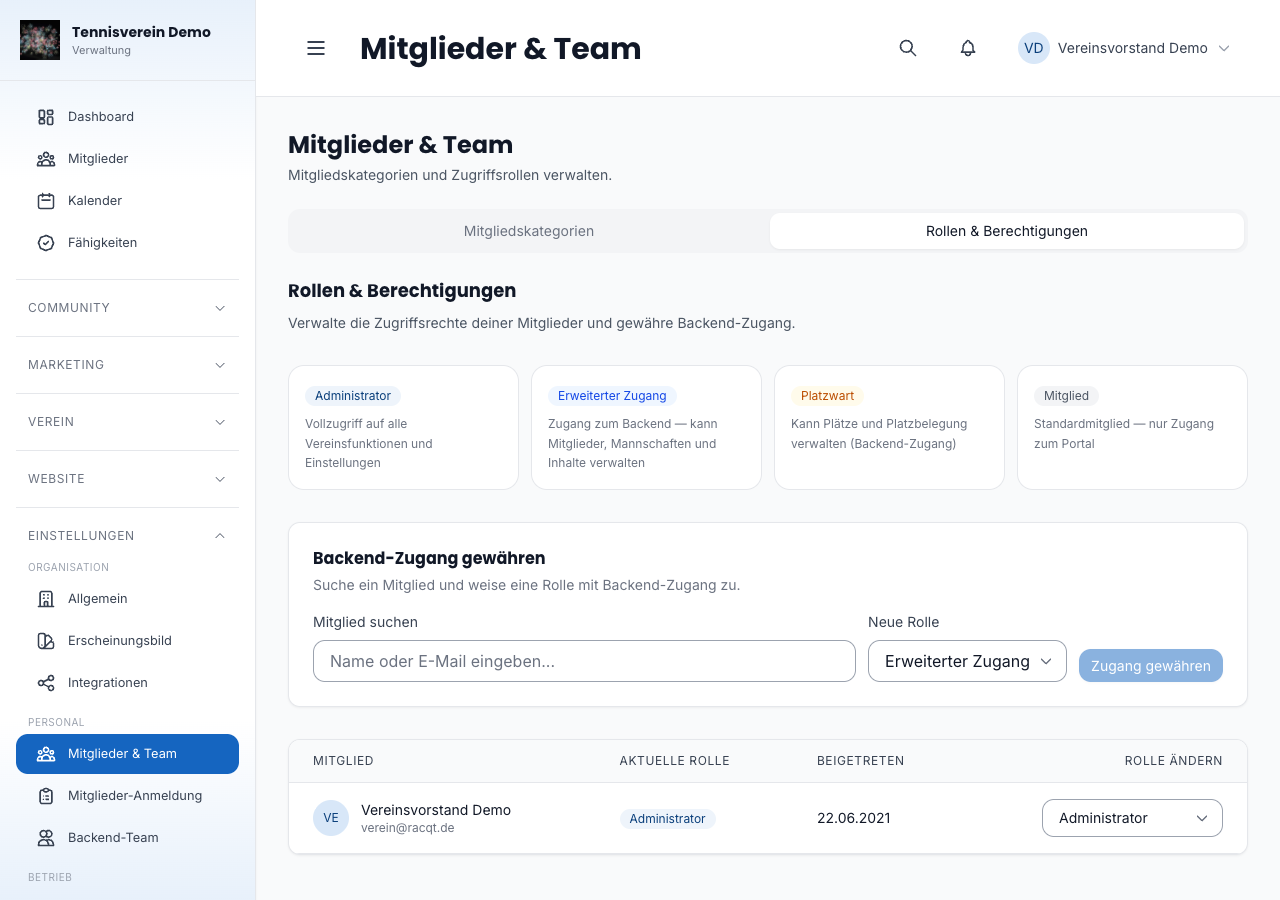
Every member has one of four roles:
| Role | Access |
|---|---|
| Administrator | Full access to all club features and settings |
| Vorstand (erweitert) (extended committee) | Dashboard access — manage members, teams, content |
| Platzwart (groundskeeper) | Can manage courts and court allocation |
| Mitglied (member) | Portal access only (no dashboard permission) |
You’ll find the role descriptions and assignment under Einstellungen › Mitglieder & Team › Rollen & Berechtigungen (Settings › Members & team › Roles & permissions).
You change role and membership category directly in the member profile under Stammdaten (Master data) — both can be saved in one step. If a detail doesn’t fit, Racqt tells you exactly why.
Roles decide access to the dashboard. That’s why only an admin of your club assigns and changes them — when creating, inviting, importing CSV and in the profile. Whoever maintains members creates new people as member; the role selection is locked for them.
This also applies to Konto einladen (Invite account) for a member who already has a role (such as committee): the role passes to the account with the invitation. That’s why only an admin invites here — everyone else sees a short note instead of the invitation field.
Member details
Clicking a name opens the member’s detail page with several tabs:
- Stammdaten (Master data) — address, contact details, membership number, joining date
- Finanzen (Finances) — fee status, manual override amount, exemption
- Dokumente (Documents) — documents about the member, such as a membership application or a medical certificate
- Fähigkeiten (Skills) — skill tags (for example playing strength, functions)
- Aktivität (Activity) — log of recent actions, from a change of address to cancellation, reminders and direct debit mandate, each with date and time
Documents in the Dokumente tab are private: they have no public link. A click on Herunterladen (Download) opens the file via a link that’s only valid for a few minutes — anyone who passes it on or finds it in the history can no longer reach the document afterwards. Every access is recorded. The member sees their own documents in the portal under Meine Beiträge (My fees).
You always see the fee status in the Finanzen tab. The actions in it — marking an item as paid, cancelling it or recording a SEPA mandate — only appear for accounts with finance access. Whoever maintains members thus keeps the full overview but doesn’t touch the money. How you set who has access to what, and how you see at a glance who across the club is missing a mandate or whose mandate is about to expire, is described under Finances.
The same goes for the manual override amount (the fee adjustment): only whoever has finance access can change it — everyone else sees the amount, and the field is locked for them.
The fee exemption is part of finances too: it decides whether fees arise for someone and are reminded. Befreien (Exempt), Anpassen (Adjust) and Aufheben (Lift) therefore only appear for accounts with finance access. Everyone else can still see whether and until when someone is exempt and why. It’s the same for a tennis school’s students.
Related articles: Online sign-up for clubs · Fees · Finances