 Racqt
RacqtComing soon Web
Settings & branding
Maintain master data, choose a template, club colour and logo, manage your team and store legal texts.
Not released yet. This feature belongs to version 1.4.0, 1.6.0, 1.7.0 and will be available shortly. To the changelog
On this page
Under “Einstellungen” (Settings, Dashboard › Einstellungen) you configure everything about your club. The entries are sorted into three groups: Organisation (Allgemein/general, Erscheinungsbild/appearance, Integrationen/integrations), Personal (staff: Mitglieder & Team, Mitglieder- Anmeldung/member sign-up, Backend-Team) and Betrieb (operations: Platzbuchung/court booking, Zahlungen/payments, Rechtliches/legal, Audit-Log).
Master data
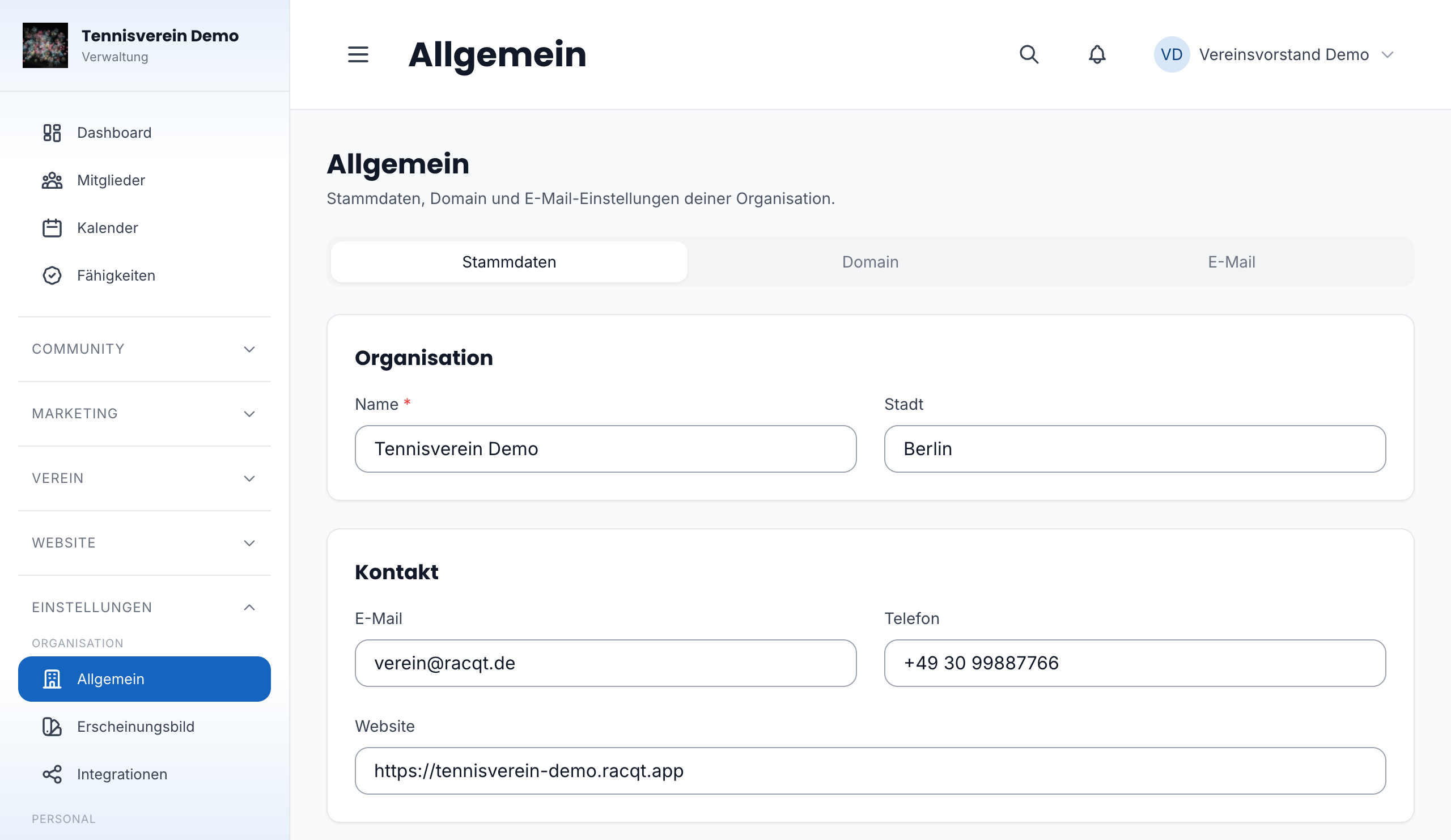
Under Einstellungen › Allgemein (General, “Stammdaten” tab) you maintain the club’s name, address and contact details. These details appear on the public club website. In the “Domain” tab you configure the subdomain and an optional own domain; in the “E-Mail” tab you store the sender address for outgoing emails.
Sender of your emails
Everything Racqt sends to your members — invoices, reminders, invitations, booking confirmations — comes from you, not from Racqt: the header shows your logo and club colour, the sender is your club name, and replies go to your club address.
The footer of each of these emails names your club as the responsible party: name, address, representatives, register number and contact, plus the legal notice and privacy policy of your club page. This isn’t cosmetic — you’re sending the message, so you have to be identifiable in it.
Under Einstellungen › Allgemein › E-Mail you set who represents the club. If you leave the field empty, we name your registered committee from the committee page — handy to start with, but you can override it at any time, because you’re responsible. Below it you see a preview of the footer as your members read it.
If something is missing — address, email address, register number or representatives —, we say so in the same place. You maintain address and register number in the “Stammdaten” tab, the committee under Verwaltung (Administration).
Why the sender address still stays noreply@racqt.app: the big providers
don’t allow emails to be sent in the name of someone else’s domain — they end up in
spam. So your name is what people see; technically Racqt sends it, and the footer
says exactly that in small print.
Only an admin of your club switches email test mode: it redirects every club email to the stored test addresses, including invoices and invitations. Everyone else can see in the settings whether it’s currently on.
Appearance of the club website
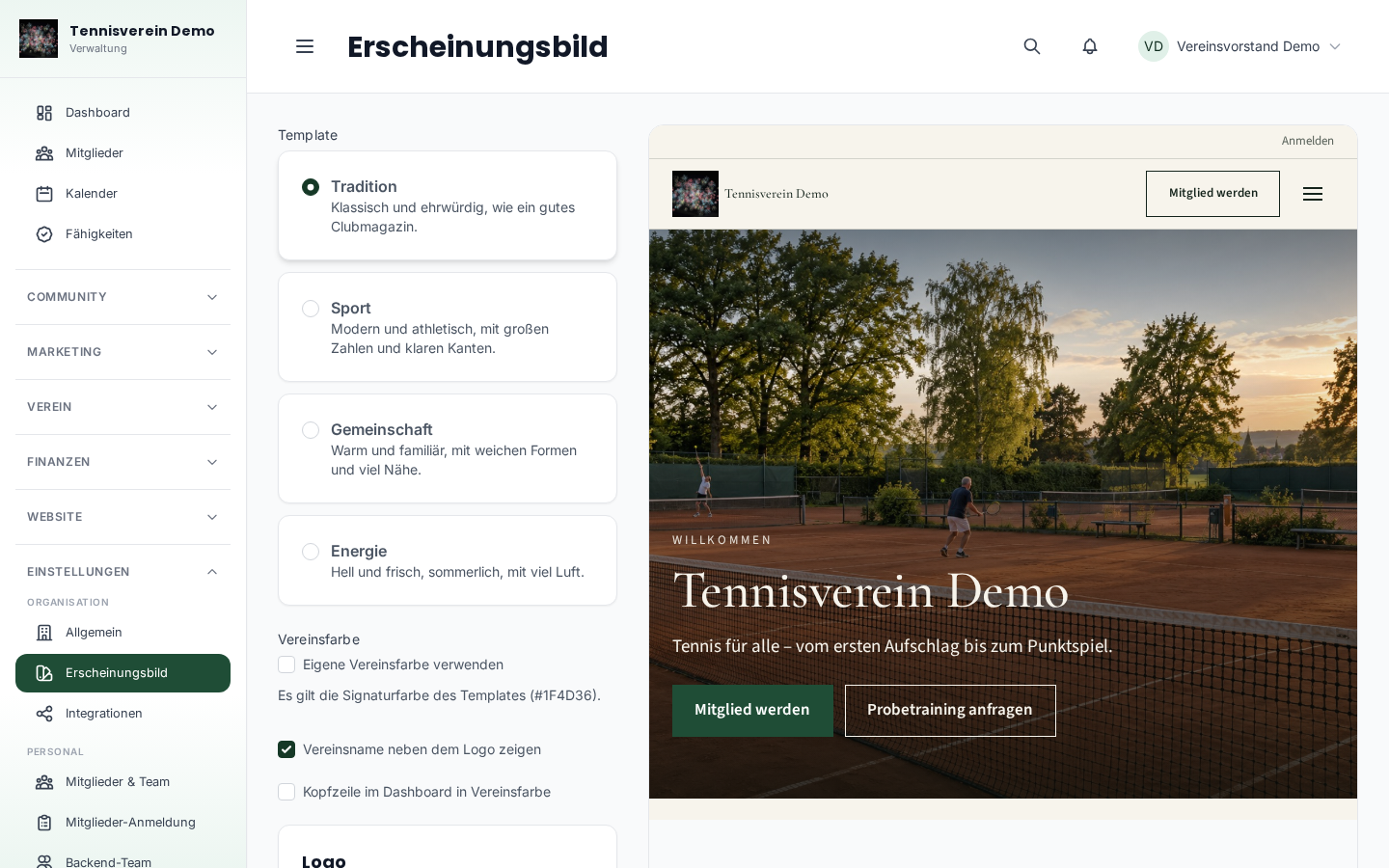
From Racqt 1.7 you set under Einstellungen › Erscheinungsbild (Appearance) how your public club website looks. You choose one of two templates in the style of big tennis clubs:
- Sportlich (Sporty) – spacious and dynamic: large photos, clear type, fine lines and dark areas in your club colour
- Familiär (Friendly) – warm and close: light areas, soft cards and a serif typeface with heart
Each template brings its own fonts, section headers and header area. Your content stays unchanged when you switch.
Optionally you set a club colour. Without your own colour, the template’s signature colour applies. Your whole colour scheme grows out of the club colour: a dark and a light area in the same hue, matching greys and an accent colour that Racqt automatically picks as its counterpart – a warm amber for blue, for example, or terracotta for green. So that text always stays readable, Racqt automatically uses a darker shade for type and links with light colours – the note below the colour field shows you what happens. The club colour also colours the Racqt app in club mode, your club emails and the statutes as a PDF. If you like, you can also show it in the dashboard’s header bar.
On the right you see your home page in the chosen template before you save. If there’s no new home page yet, the preview shows example content. Below it you upload the club logo – optionally also a version for areas in the club colour.
Integrations — social media and publishing
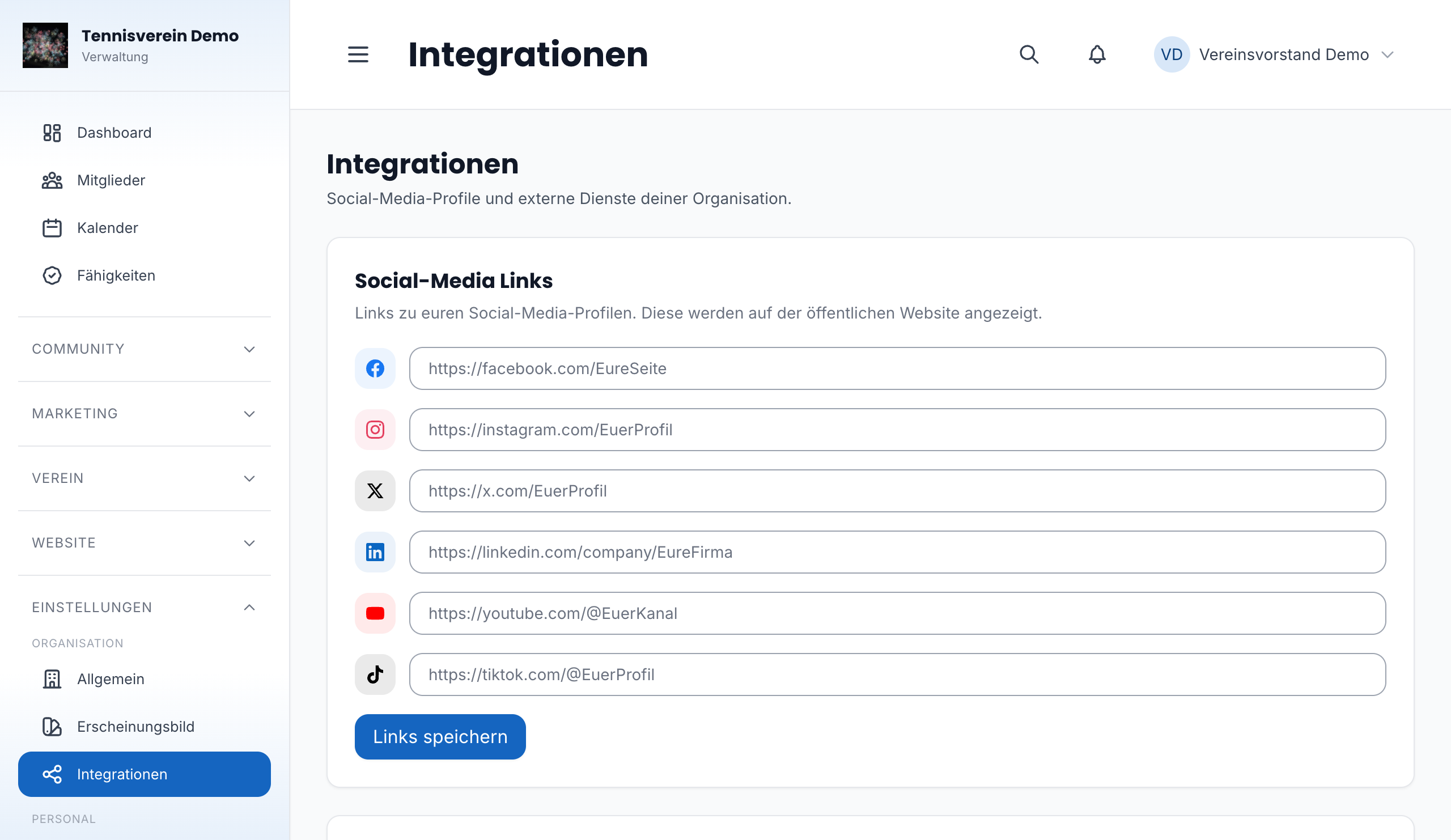
Under Einstellungen › Integrationen (/app/settings/integrations) you manage the connections to external services. In the “Social-Media Links” section you store the addresses of your profiles (Facebook, Instagram, Twitter/X, LinkedIn, YouTube, TikTok); they appear on the public club website.
If you want to publish news from Racqt directly to Facebook and Instagram, store
the credentials of your own Facebook Developer App below and then connect your
Facebook page together with its linked Instagram business account. As the redirect
URI, enter https://DEIN-SLUG.racqt.app/app/settings/social/callback in the
Facebook app (with your club’s slug in place of DEIN-SLUG).
Team and access
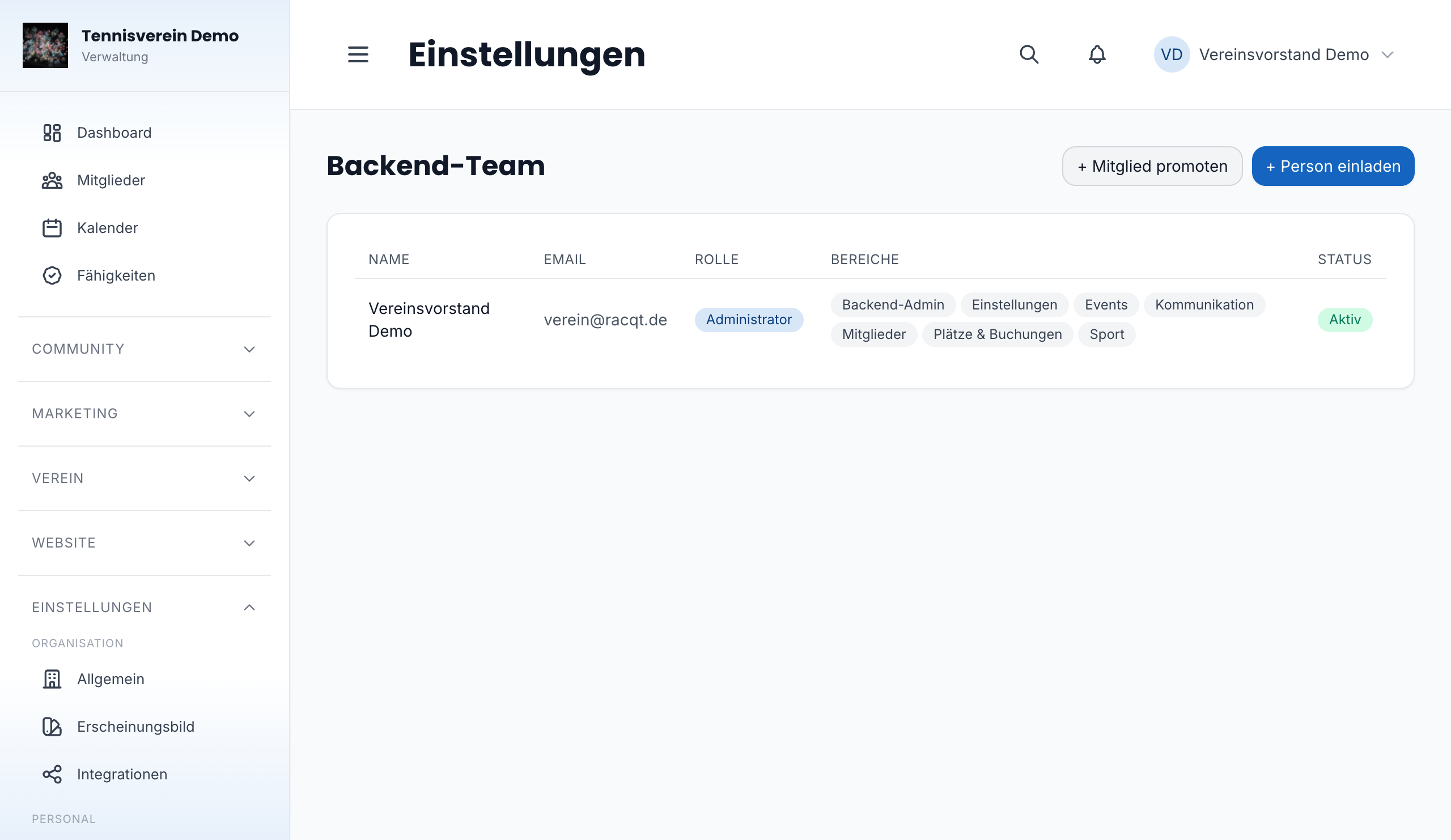
Under Einstellungen › Backend-Team (/app/settings/staff) you see everyone who has access to the dashboard. You can invite new people by email (“+ Person einladen”) or promote existing club members to staff (“+ Mitglied promoten”). On a team member’s detail page you can adjust roles and permissions or remove the person. Under Staff › Audit-Log you see an overview of all administrative actions.
Searching and sorting the audit log
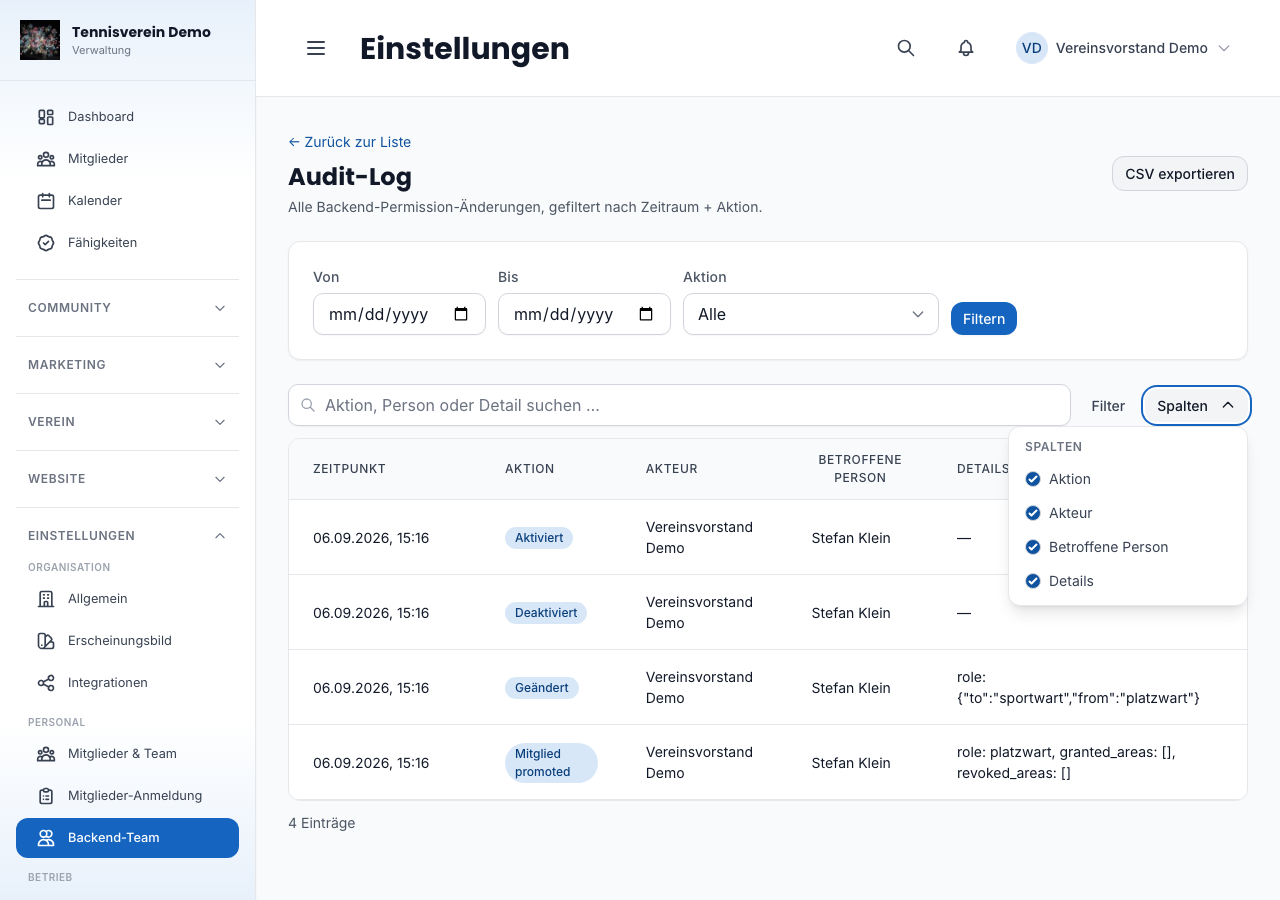
Under Einstellungen › Audit-Log you see who changed what in the back office. Beyond the period filter, you can now arrange the list yourself:
- Search: type in the search field above the table, and only the matching rows remain — whether you enter a name, an action or a date. If nothing is found, Racqt tells you, and “Zurücksetzen” (Reset) takes you back to the full list in one click.
- Sort: a click on a column heading sorts by it, a second reverses the order.
- Show and hide columns: under “Spalten” (Columns) you choose what you want to see. Your selection is saved for next time, and “Alle einblenden” (Show all) brings them back.
Legal texts
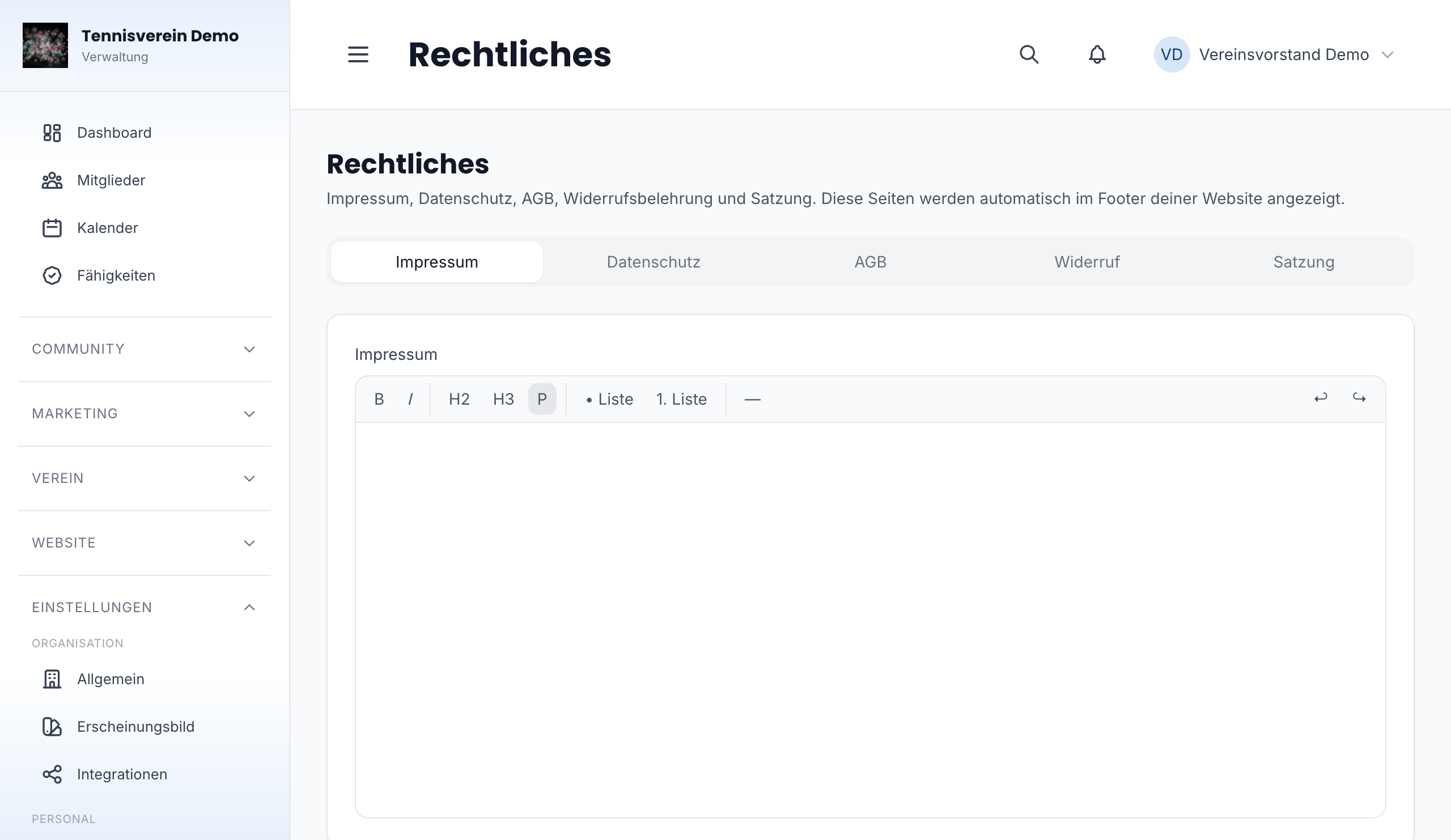
Under Einstellungen › Rechtliches (/app/settings/legal) you maintain the legal notice, privacy policy, terms, cancellation policy and — for clubs — the statutes. All texts are edited in the rich text editor. They automatically appear in the footer of the club website and are therefore always accessible to visitors.
Payment methods
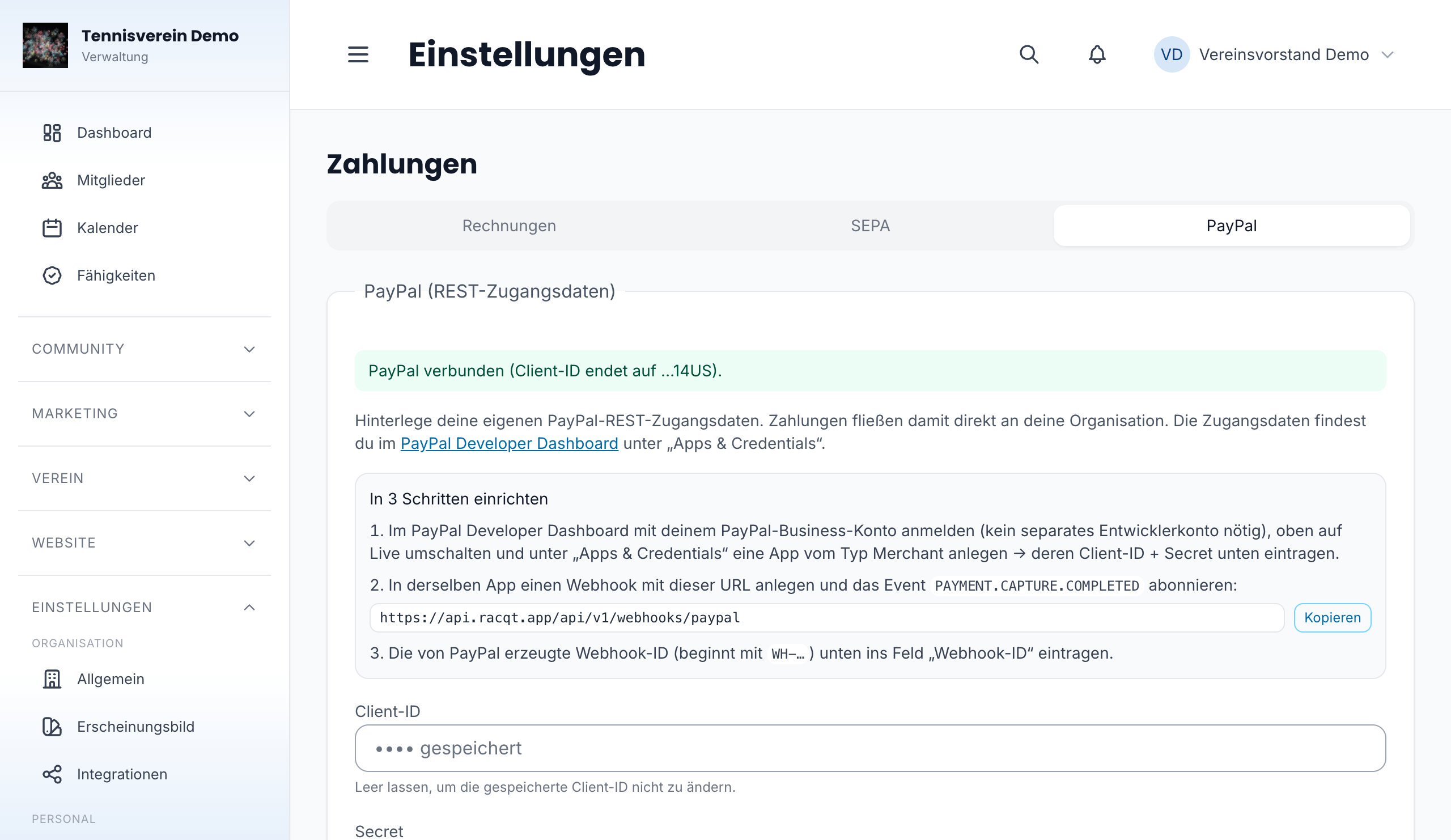
Under Einstellungen › Zahlung (/app/settings/payment) you set up the payment methods for paid bookings and events. Available are PayPal (OAuth connection), SEPA direct debit (with creditor identifier and creditor name) and invoice (with a configurable payment term and invoice footer). Each tab only saves its own details — saving the SEPA data changes nothing in the invoice settings and vice versa.
In the SEPA tab you also set the pre-notification period: this many days before the collection, your members get the notification of when which amount will be debited. 14 days is the legal standard. Shorter (at least one day) only if your mandates or statutes explicitly provide for it. When collecting, Racqt then suggests the earliest possible date that meets this period and falls on a bank working day — more on this under Finances.
Related articles: Managing courts & bookings · Club website (CMS) · Online sign-up for clubs