 Racqt
RacqtComing soon Web
Club website (CMS)
Build and maintain the public club website with the page builder, manage the club history, upload media and design the hero area with a background image.
Not released yet. This feature belongs to version 1.4.0, 1.5.1, 1.7.0 and will be available shortly. To the changelog
On this page
The CMS area (Dashboard › Meine Seiten, My pages) gives you the tools to design your club’s public website yourself — without technical knowledge. You build pages from blocks, maintain the club history and upload images and videos to the media library.
Creating and editing pages
Under “Meine Seiten” you see all existing pages with their status (Entwurf/draft, Veröffentlicht/published, Archiviert/archived) and the date of the last change. Click “Neue Seite” (New page) and enter a title and slug — the slug is suggested automatically from the title and determines the page’s URL on your club website.
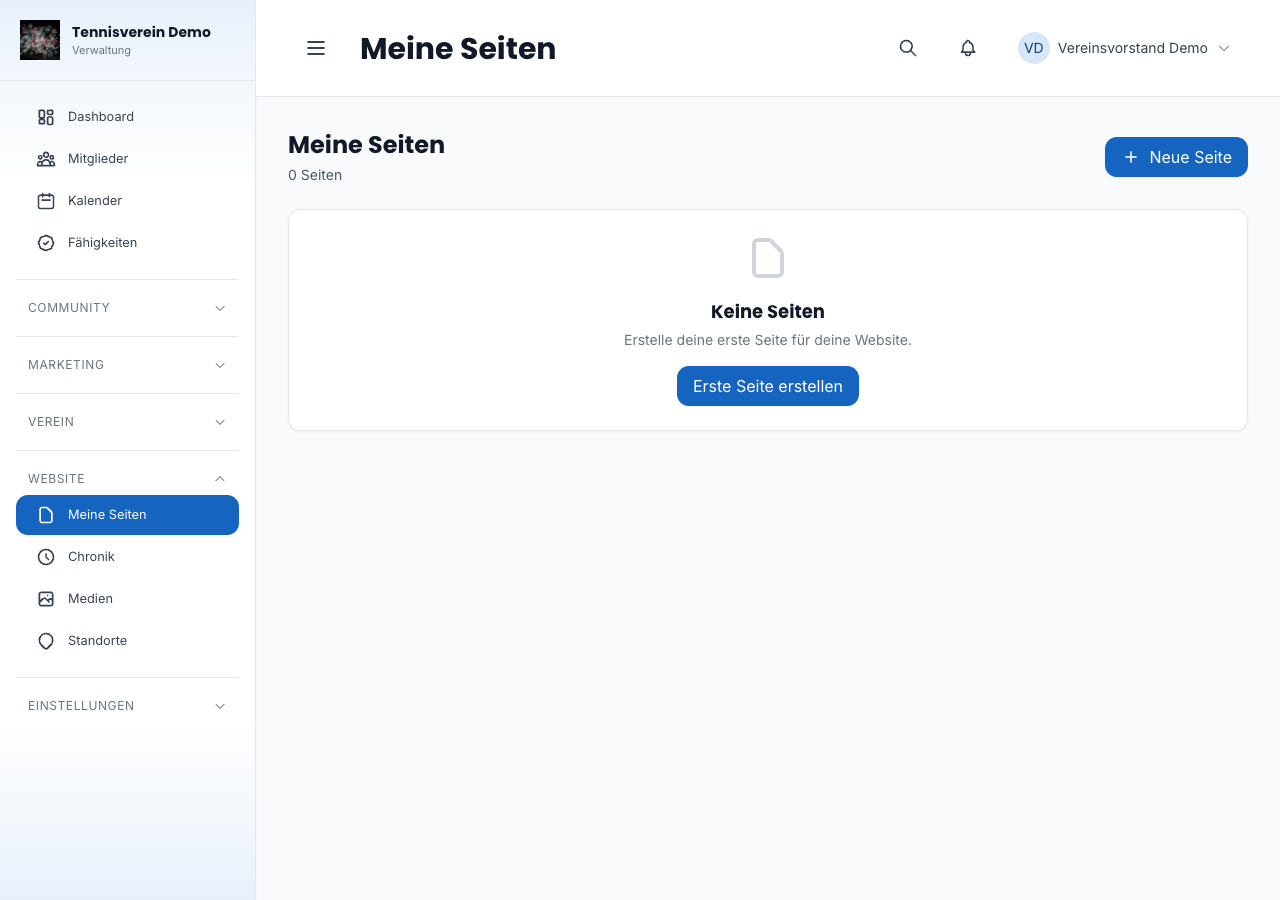
Newly created clubs already find a ready-made home page in draft here: a welcome, upcoming dates, a section about your club, your offers, news, teams, a call to join in and your partners. The texts already carry your club name. Adapt them, add photos and publish – dates, news, teams and partners fill themselves automatically from your club data.
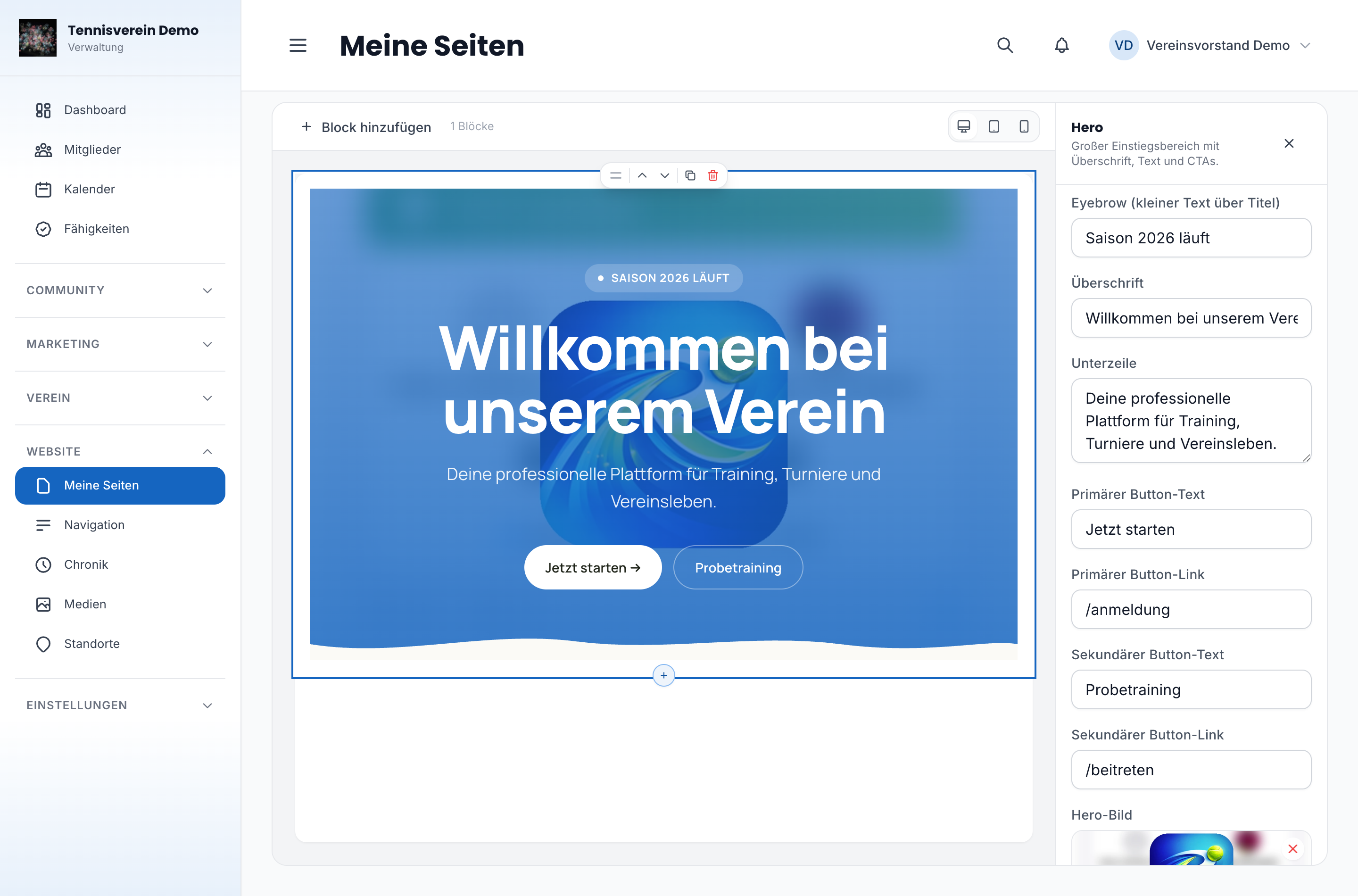
On the page’s detail view you add blocks and arrange them by drag and drop. Each block has its own settings — for example heading, subheading and call to action in the hero block. When the page is finished, you publish it with one click; it’s visible on your public website immediately. Pages can also be archived or deleted permanently.
You edit pages in the new block set in three columns: on the left you see the outline of your blocks, in the middle the preview of your page – exactly as visitors see it, as desktop, tablet or phone – and on the right the settings of the selected block. A click in the preview selects the block. With the small + between two blocks you insert a new one exactly there; you reorder by dragging or with Alt and the arrow keys. Racqt saves your changes automatically, and at the top you can always see whether everything is saved. Made a mistake? Rückgängig (Undo, ⌘Z or Ctrl+Z) takes steps back.
From Racqt 1.7 you first save changes as a draft. Your public page stays unchanged until you click Veröffentlichen (Publish) – so you can rebuild in peace. As long as there are changes that aren’t online yet, “Änderungen nicht veröffentlicht” (Changes not published) appears next to the status. If something important is missing when publishing, such as an image description, Racqt tells you exactly in which block. Every publication is saved as a version; under “Versionen” (Versions) you bring an older version back as a draft.
New home page blocks
From Racqt 1.7 a newly created home page uses the new block set. Every block has a background (standard, set off or club colour) and often several variants you switch between at the top of the settings. Colours and fonts come from your club’s template. You don’t have to set anything for text to stay readable.
- Hero: the big intro with heading and buttons – as a title page, as a full screen image across the whole width, as a collage of three photos or split with text and image side by side.
- Text: formatted text, narrow or wide.
- Text + image: your “About us” with a photo on the left or right.
- Key figures: up to six numbers, such as members and courts – as a simple line or as a scoreboard.
- Offers: what you offer, as a list, photo tiles, icon tiles or with a large lead image. There are special icons for tennis and padel for icon tiles.
- Quote: a sentence from members or the committee, with a portrait if you like.
- Photo banner: a large photo across the whole width.
- Gallery: up to 24 photos as a grid or to swipe through.
- FAQ: questions and answers that expand.
- Contact: address, phone, email and opening hours, with a map if you like. Tap “Adresse auf der Karte suchen” (Find address on map) so Racqt finds the location. The map only loads for visitors once they consent.
- Video: a YouTube video or your own video. YouTube videos only load when someone taps play – before that, no data is transmitted to YouTube.
- Timeline: your club’s history in years.
- Social media: links to your channels.
- Call to action: an eye-catching section with a button, such as “Mitglied werden” (Become a member) – on a plain background or over a photo.
Blocks with your club data fill themselves – you only set the heading, number and, if you like, a category:
- Events: the next dates from your calendar, as a list, scoreboard or timeline. If registration is needed, “Anmelden” (Register) appears right next to it.
- News: your latest public posts as a large lead story, grid or carousel.
- Sponsors: your sponsors grouped by level or as a ticker.
- Teams: your teams as portraits, circles or league table – only juniors or only adults if you like. You enter the league in the team under “Liga auf der Vereinswebsite” (League on the club website); without an entry, the name from nuLiga applies.
- Courses: your public courses with price and scope.
- Facilities: address, photo or map of your location and a few facts such as “7 Sandplätze” (7 clay courts) that you enter in the block.
- Fees: your membership fees from online membership. If online membership is open, “Mitglied werden” (Become a member) appears right below.
If there’s nothing to show at the moment, the website hides the block. In the editor you then see a note with a link to the matching area, such as “Termin anlegen” (Create event).
Subpages such as teams, events, courses, locations, news and committee appear automatically in your club’s template – with the same navigation and footer as the home page. They fill themselves from your club data; if there’s nothing to show yet, a short note appears there.
All other pages too – the detail pages of individual teams, events and posts, contact, become a member, season registration, statutes and club history – take on your template’s colours and fonts. Your website thus looks consistent from the home page to the sign-up form. Even a very light club colour stays readable on buttons.
Focal point: for large images you tap the most important spot in the image in the settings. It stays visible however the image is cropped on a phone or screen.
Navigation: menu items with subpages open a large menu across the whole width – with the subpages and their short descriptions and your next event on the right. On a phone, the menu button opens a full-screen menu. In the Sportlich (Sporty) template, the navigation sits transparently over a full-screen photo if it’s the page’s first block, and turns into a compact bar as you scroll.
Without photos: if an image is missing – such as a team photo –, the website shows a designed area in your club colours instead of an empty space.
Motion: large photos zoom in gently as they load, sections glide in as you scroll and figures count up. Anyone who has set “Reduce motion” on their device sees everything straight away without animation.
The website hides entries without a title until you’ve filled them in. Photos need a short description so that people using a screen reader also know what’s shown – Racqt reminds you when publishing.
Club history
Under Meine Seiten › Chronik (My pages › Club history, /app/cms/chronik) you
maintain your club’s history. Each entry has a date (year, optionally month and
day), a title, a short description and optionally an image. The history appears on
your public site under /chronik as a timeline. You create new entries via “Neuer
Eintrag” (New entry); you open existing ones by clicking them to edit.
For each entry you can upload a cover image and any number of further images for the gallery. The images appear in the preview right after uploading. If an image doesn’t go through for once — for example because the file is too large — Racqt tells you immediately instead of silently saving the entry without the image.
Hero image on the home page
The hero block at the very top of your home page is your stage. Choose a variant: Titelseite (title page) without any photo, Vollbild (full screen) with a large photo, Collage of three images or Geteilt (split) with text next to the image. In the page editor, click the hero block and choose a photo from the media library under “Bild” (Image). Enter a short image description and tap the most important spot in the image under Fokuspunkt (Focal point) – it stays visible on phones and screens.
Media library
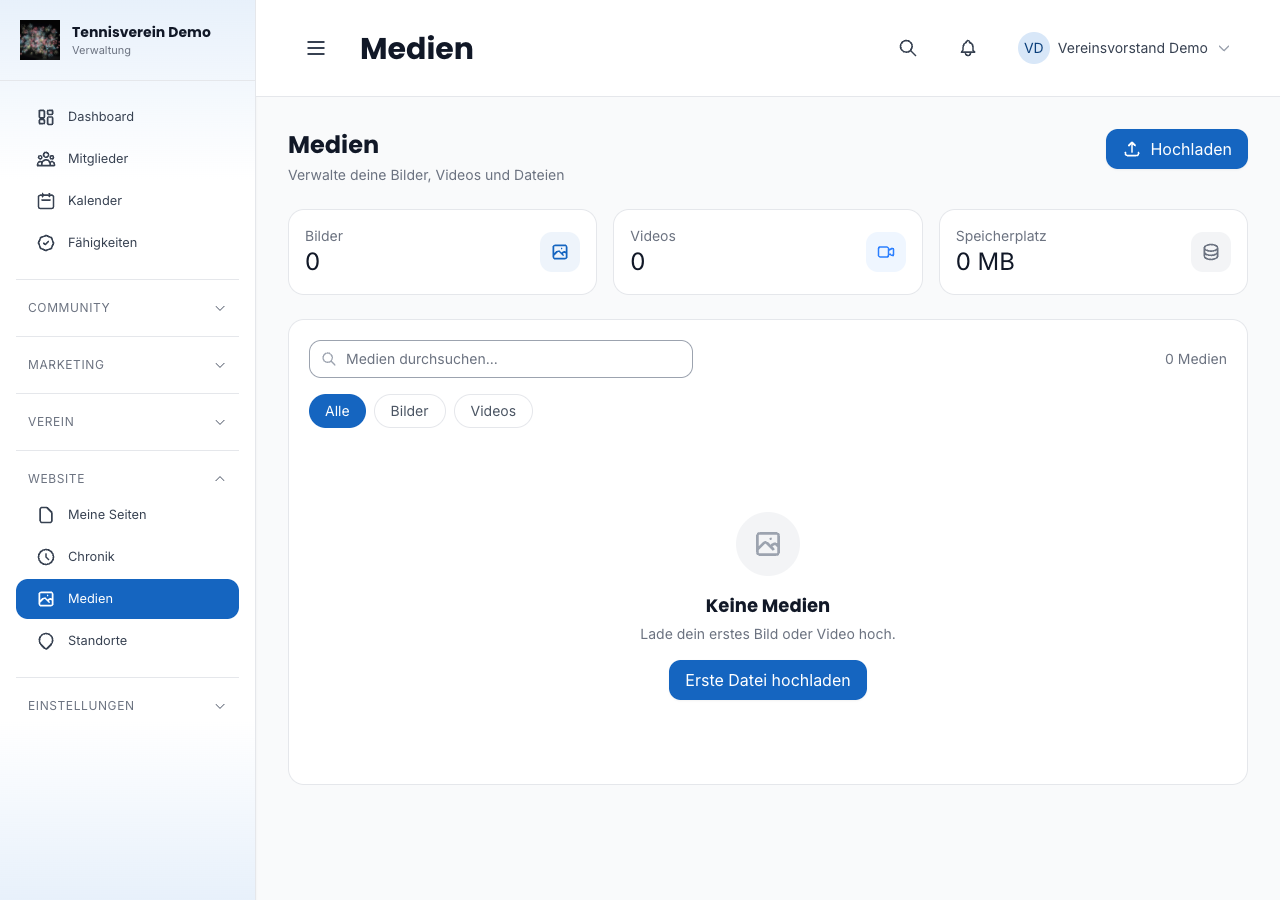
Under Dashboard › Mediathek (Media library, /app/media) you upload images (max. 5 MB) and videos (max. 25 MB) — either by clicking the upload area or by drag and drop. Search by file name or alt text and filter by images or videos. Each file can be given a title and alt text — important for search engines and accessibility. You choose images from the media library directly in the page editor and the news editor.
Domain and subdomain
You configure your club website’s URL under Einstellungen › Allgemein (Settings ›
General) in the “Domain” tab. There you store the Racqt subdomain (for example meinverein.racqt.app) or connect your own domain via a CNAME record. After saving
your own domain, you can check the DNS status directly in the dashboard.
Related articles: News & newsletter · Sponsors · Settings & branding